Getting started

The Dodo App is available for iOS and Android devices. You can download it from:

  • Apple App Store for iPhone and iPad devices.

link to apple app store

  • Google Play Store for Android devices.

link to google play store

Related
What are the features of the Dodo App?

Key features of the Dodo App

The Dodo App allows you to:

Account management

  • Update your contact details.
  • Update your payment details.
  • Manage your services.

Billing and payments

  • View your bills and invoices.
  • Check your account balance.
  • Make a payment.

Support

  • View support articles.
  • Contact Dodo using Dodo Chat.


Related
Where can I get the Dodo App?

If you already have a MyDodo account;

  1. Open the Dodo App.
  2. Sign in with your existing MyDodo login credentials when prompted.
  3. Enter the verification code sent to your nominated email address of mobile number.

Once verified, you will be able to access your account using the Dodo App.

If you’re new to Dodo or don't have a MyDodo account;

  1. Open the Dodo App.
  2. Select Set Up My Dodo.
  3. Enter your account details as requested.
  4. Complete the verification process if prompted. 

Once your account has been created, you can sign in and start using the Dodo App to manage your services.

Easy sign in allows you to log in to the Dodo app using your device's biometric authentication features.

To use Easy sign in:
  1. Make sure you have the latest version of the Dodo App installed.
  2. Sign in with your email address and password.
  3. Enter the verification code sent to your nominated email address or mobile number.
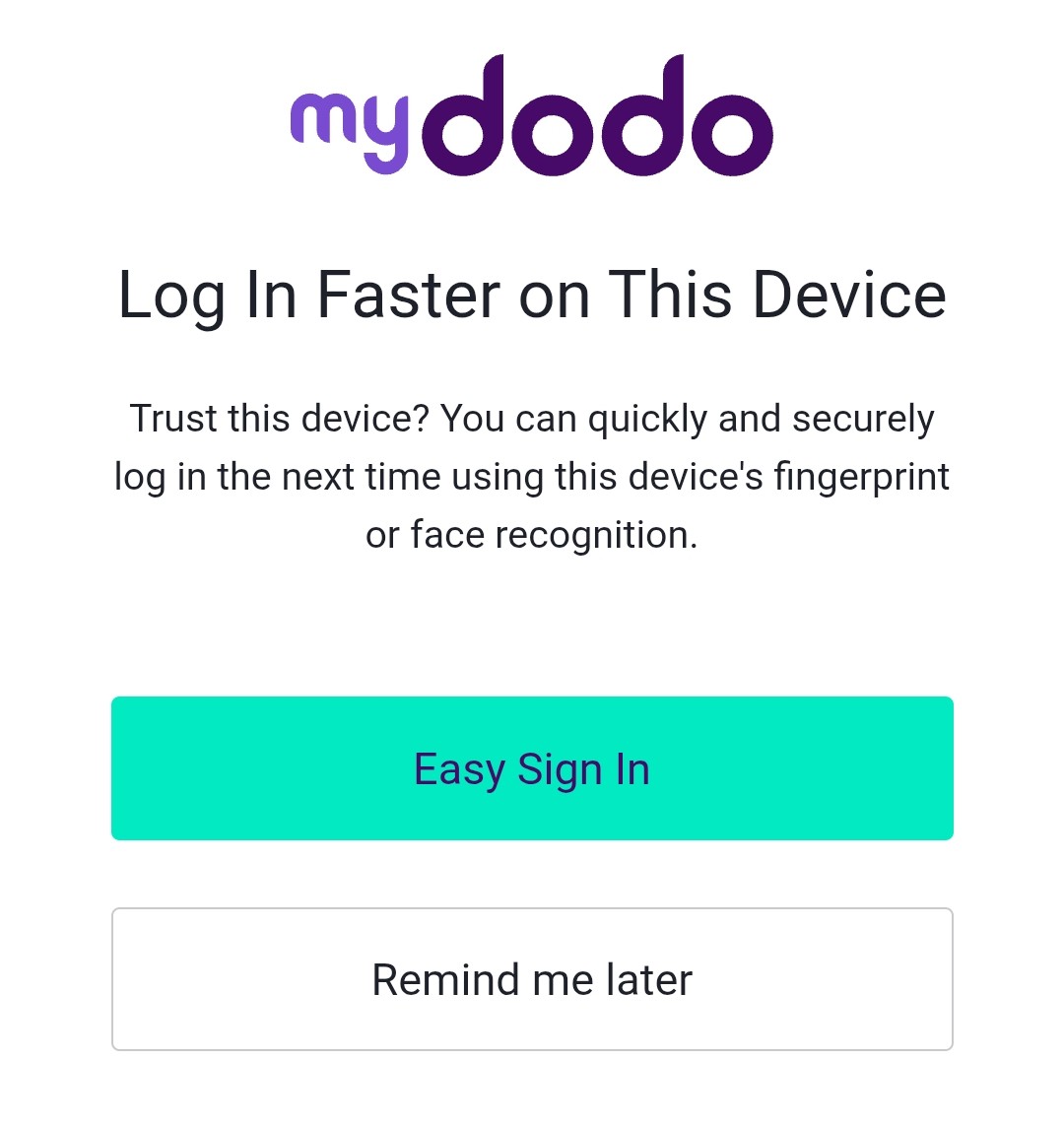
  4. After signing in, select enable Easy sign in when prompted.

Easy sign in screen

Once enabled, you can use Easy sign in to log in to the Dodo app without entering your password each time.

Enable Easy sign in on a new device

If you've previously used Easy sign in and are setting up a new device, you'll need to disable Easy sign in from the old device.

How do I disable Easy sign in from my old device?
  1. Ensure that you have the latest version of the Dodo app installed on your new device.
  2. Sign in using your email address and password.
  3. Enter the verification code sent to your nominated email address or mobile number.
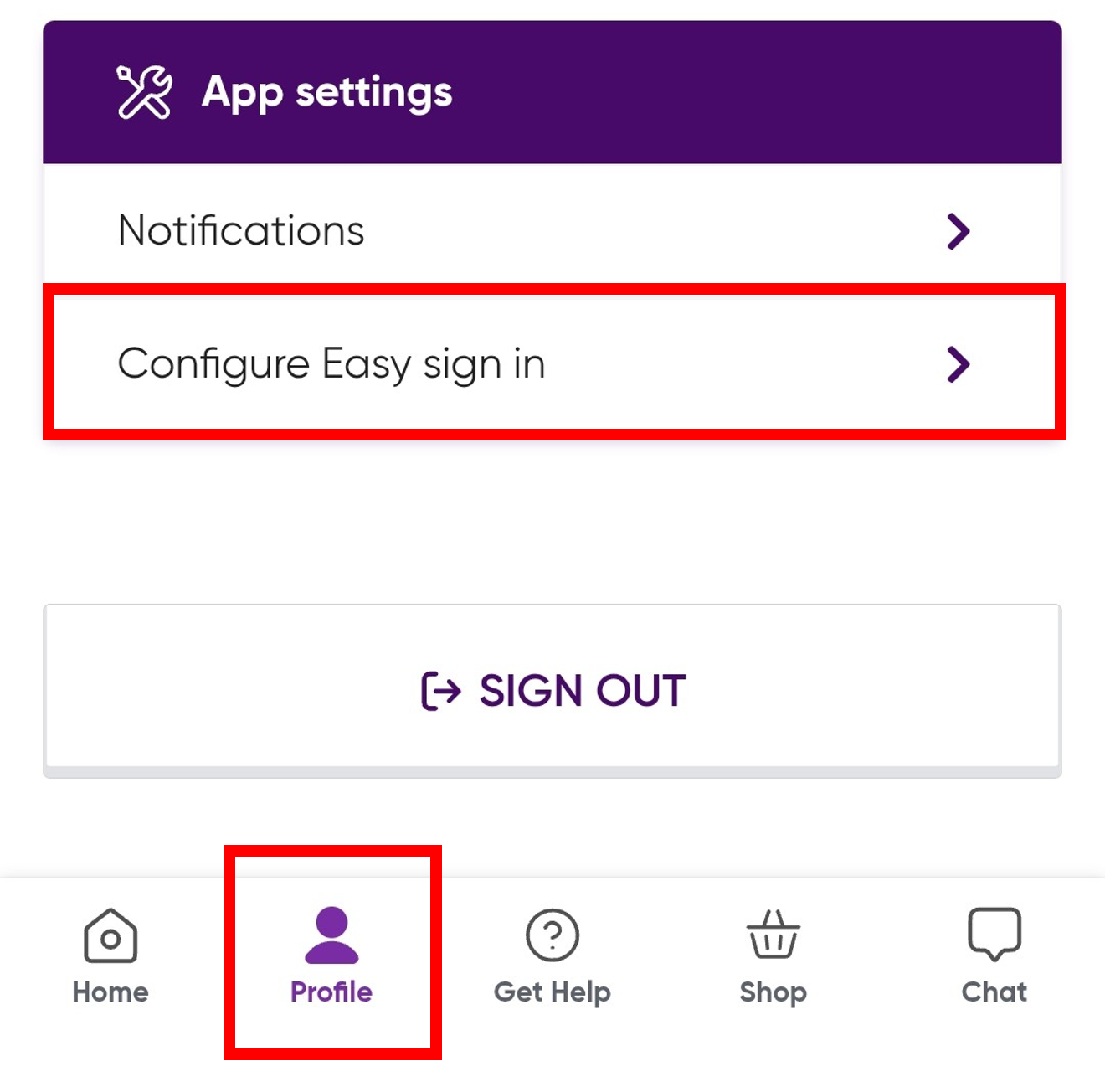
  4. Select Profile at the bottom of the screen, then select Configure Easy sign in.

Easy Sign in Config page


  1. Select Disable Easy sign in. This will deregister Easy sign in from your old device.
  2. Sign in again using your email address and password.
  3. Once you’re signed in, select Easy sign in and follow the prompts to complete the setup on your new device.

Easy sign in screen

Once enabled, you can use Easy sign in on your new device without entering your password each time.

Unable to set up Easy Sign-In or required to log in every time

You may be required to enter your login details each time you use the Dodo App if Easy sign in has not been successfully configured.

To troubleshoot Easy sign in:

  1. Ensure you are using the latest version of the Dodo App.
  2. Check that your device is running iOS 16 or later or Android 9 or later.
  3. Ensure Passkeys are enabled on your device.
  4. On iPhone, go to AutoFill & Passwords and ensure AutoFill Passwords and Passkeys is enabled.
  5. If your device cannot be updated to a supported operating system version, you can still access MyDodo via a mobile or desktop browser.
  6. If Easy sign in was previously enabled on another device, you’ll need to disable it before enabling it on your current device.
  7. If you select Remind me later during Easy sign in setup, you won't be prompted to set up biometrics again for 7 days.
  8. For instructions on moving Easy sign in to another device, see Can I enable Easy sign in on my new device?.

Unable to sign in to the Dodo App

If you're unable to sign in:

  1. Reset your password using the Retrieve login details page.
  2. Select Recover my password.
  3. Enter the email address associated with your account.
  4. Follow the instructions sent to your email address.

If you are unsure which email address is linked to your account, contact Customer Support for assistance.

We will not provide passwords over the phone, email or chat.

If you’ve forgotten your password you will need to reset it:

  1. Visit the Retrieve login details page.
  2. Select Recover my password.
  3. Enter your email address.
  4. Follow the instructions sent to your email address.

If you are unsure which email address is linked to your account, contact Dodo using the Chat icon at the bottom of the screen or contact Customer Support for assistance.


Related

How do I log in?