
Mobile

All of our in-market mobile plans offer 5G services. Some of our retired plans only offer a 4G service, if you are on one of these plans or don’t own a 5G compatible device, don’t worry, your service will still operate with a Dodo mobile SIM via the 4G network.

To learn more about 5G, visit our information page here.
An eSIM is a digital SIM built into your phone.

Instead of inserting a physical SIM card, you scan a QR code to install the eSim to your device. This means faster activation, no SIM delivery, and no need to swap SIM cards.  

When you order a Dodo eSIM we’ll send you a QR code once it’s ready, just scan it on your phone to finish setup and you’re good to go!* 

*Dodo Mobile eSIM is not compatible with smartwatches or smart wearables.
 

Mobile Data

If you are having issues getting online, check the following.

  • Have you activated your SIM card? You can activate your SIM card here.
  • If you're using an eSIM, has the eSIM profile been successfully installed on your device?
    • Check that the eSIM is active in your device's Mobile Network or Cellular settings and selected as the preferred service for mobile data.
  • Are your monthly payments up to date? Login to MyDodo to check your account balance.
  • Does your plan include a monthly data allowance? You can login to MyDodo to view your data allowance and remaining balance.

If mobile data is still not working, please check that you have the correct mobile data settings as shown below.

GPRS Settings:
 

Website:- http://networker.optus.net.au/wap/index.wml
APN:- Internet
Gateway/Proxy IP:- 202.139.83.152
Port:- 9201

If your settings are correct and the sim card is active but mobile data is not working, contact us via online chat for further assistance.

MMS

If you are having issues, you can check that you have the correct MMS settings as shown below.

MMS Settings: 

Website:- http://mmsc.optus.com.au:8002/
APN:- MMS
Gateway/Proxy IP:- 61.88.190.10
Port:- 9201

Still having issues? Contact us for further assistance.

Most phones released from 2019–2020 onwards support eSIM. Your phone must be eSIM compatible to use this option.

You can check instantly:

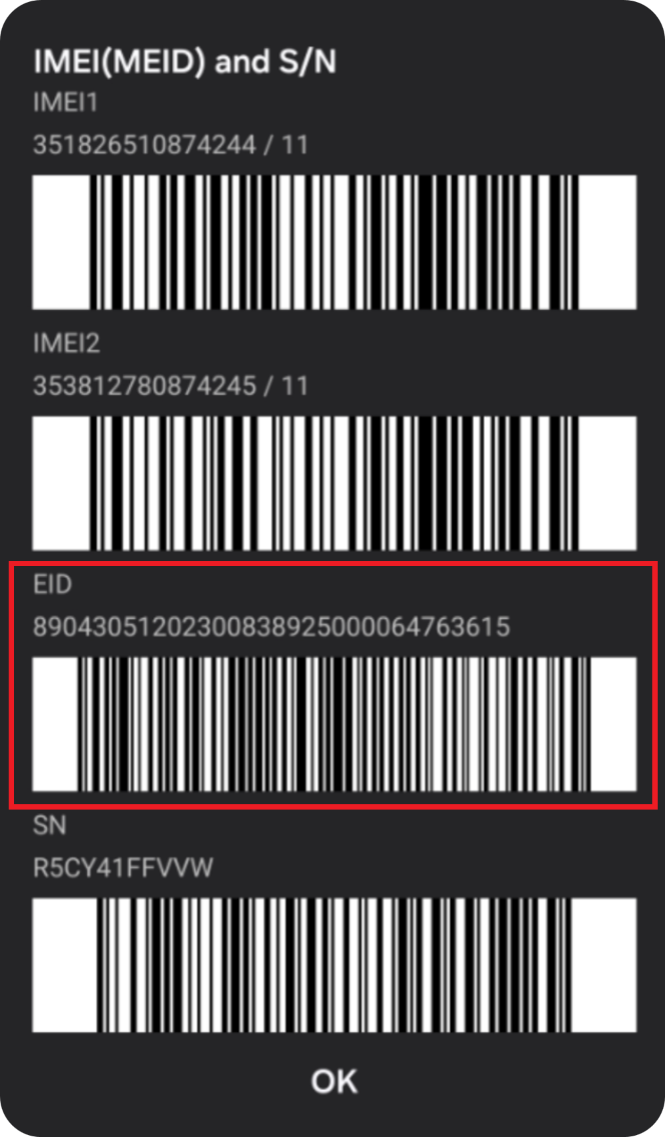
  1. Dial *#06# on your phone 
  2. If a 32 digit EID number appears, your device supports eSIM and you’re good to go!

Example EID number


Transferring your number

You can transfer your mobile number to Dodo by selecting the option when signing up to Dodo Mobile.

  • If your existing service is pre-paid, we require the mobile service number and the date of birth provided when that service was created.
  • If your existing service is post-paid, we require the mobile service number and the account number of the service you wish to transfer to Dodo.

When transferring your number from another provider, your service should be active within 4 hours, however can take up to 2 business days*.

Once the service with your previous provider stops working, either:

  • Replace your old SIM with your new Dodo SIM card.

or

  • If using a Dodo eSIM, scan the QR Code provided to complete activation.

You may need to power cycle you handset to complete service activation.

*Requests submitted outside standard porting hours (Mon–Fri 8am–8pm, Sat 10am–6pm AEST, excl. public holidays) will process the next operating day.

Related

How long does it take to transfer my number to Dodo?

We will send an activation QR code as soon as your eSIM service is ready. Please ensure that your device remains connected to a stable Wi-Fi connection.

New Number

  • You should receive a code within a few minutes.

Keeping Your Number

  • You will receive an activation QR code as soon as the transfer is complete.
  • Most transfers are ready within a few minutes, but can sometimes take longer (4 hours up to 2 business days in some cases)*.
  • Your current service will remain active until the transfer is completed.

*Requests submitted outside standard porting hours (Mon–Fri 8am–8pm, Sat 10am–6pm AEST, excl. public holidays) will process the next operating day.

Activation:

  1. Open the email with QR Code
  2. Scan the QR code using one of the options below;
    1. Open the QR code on another device (tablet, computer, phone, etc.) and scan it using your phone’s camera.
    2. Open the QR on your device:
      • Android users tap the QR code, then tap then using the menu button (3 vertical dots on the top right of the screen) select “Recognise QR codes” to proceed.
      • iOS users use the mail app, then tap and hold the QR code to proceed.
    3. Print the QR code and scan it using your phone’s camera.
  3. Your phone will prompt you to install the eSIM.
  4. Follow the on screen instructions to complete activation.
  5. Your all done and good to go!

An eSIM replacement is required to complete this process.

Contact support here to reconnect with a replacement eSIM.