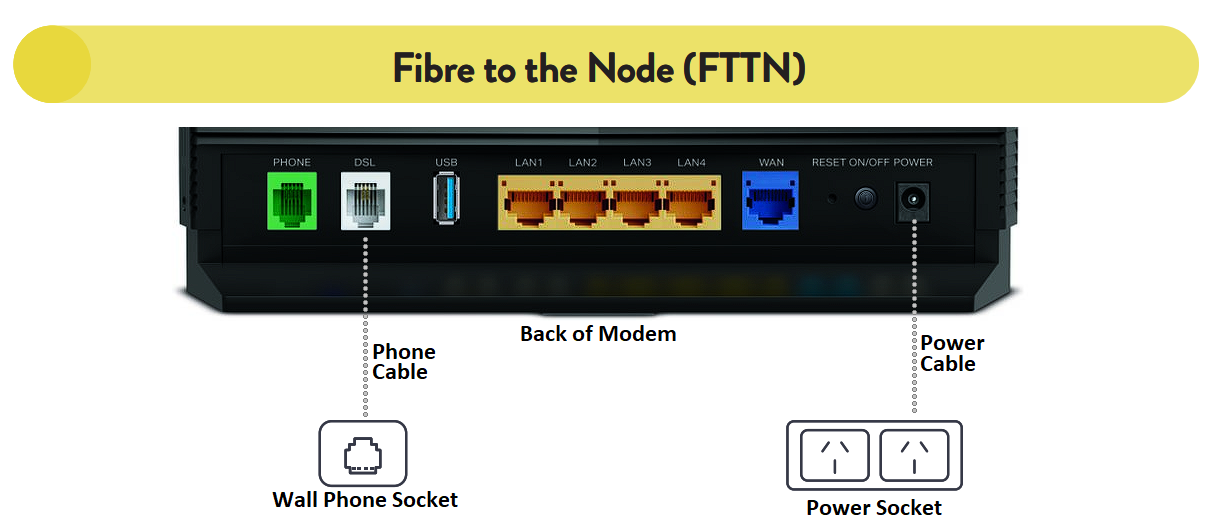
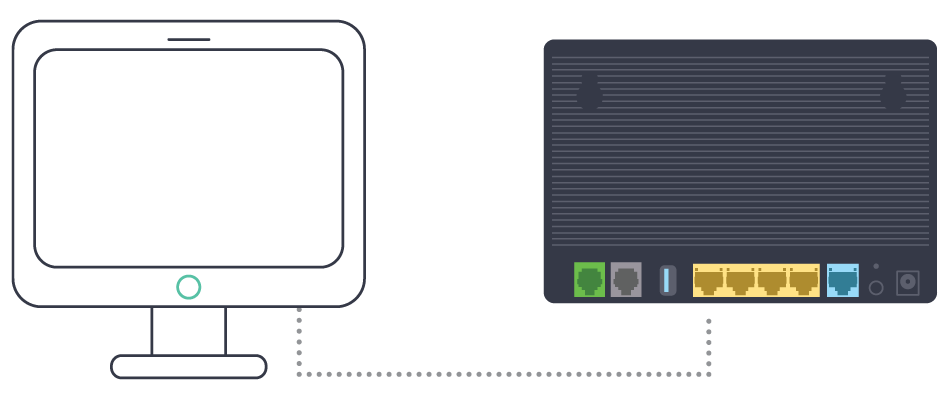
Dodo modems (Current)

HX510 Mesh Wi‑Fi Booster Setup Guide

This guide outlines the supported pairing methods for the HX510 Mesh Wi-Fi Booster. Please follow the method that best suits your installation scenario.

  • Method 1 – Pairing by Ethernet cable (Recommended for simplicity)
  • Method 2 – Pairing by Aginet APP

Overview

Enhance your Wi‑Fi coverage and overall connectivity by installing the HX510 Mesh Wi‑Fi Booster within your premises. The setup process is straightforward and can usually be completed within a few minutes.

What's Included in the Box

  • 1× HX510 Mesh Wi‑Fi Booster
  • 1× Ethernet cable
  • 1× Power adapter


Method 1 – Pairing by Ethernet Cable

  1. Confirm the modem is online

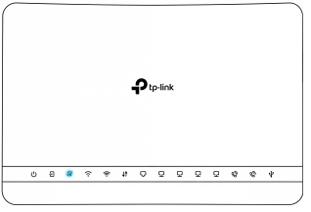
    Ensure that the Internet connection on your main modem is active. Verify that the Internet LED on the VX420-G2v or VX220-G2v modem is solid or flashing.
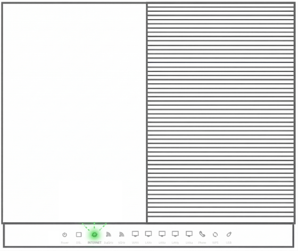
VX420-G2v modem internet light
VX420-G2v

VX220 modem internet light

VX220-G2v

  1. Power on the HX510

    Place the HX510 Wi‑Fi Booster next to the modem, connect it to power, and switch it on. Wait until the LED indicator starts flashing blue slowly, this can take a few minutes.
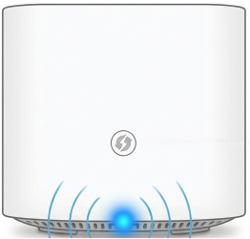
HX510 Slowly flashing blue
 

  1. Connect the Ethernet cable

    Plug the supplied yellow RJ45 Ethernet cable into an available yellow LAN port on the back of the VX420‑G2v or VX220-G2v modem. Connect the other end to a LAN port of the HX510 Wi‑Fi Booster.
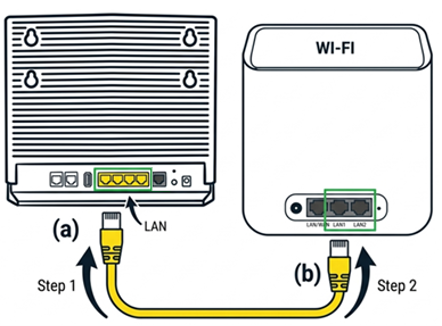
Plug the yellow cable into a lan port

VX420-G2v mesh pairing with HX510 by using Ethernet cable
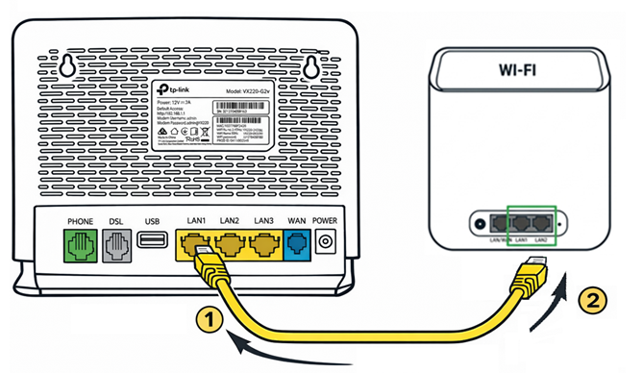
Plug the yellow cable into a lan port

VX220-G2v mesh pairing with HX510 by using Ethernet cable


  1. Wait for pairing to complete

    Once pairing begins, the LED on the HX510 will flash blue rapidly. Wait until the LED turns solid white. This process may take up to 5 minutes.
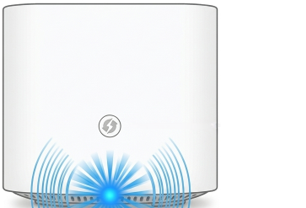
     Pairing in progress
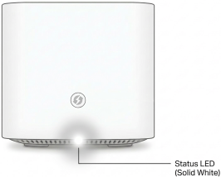
    Pairing in progress

    Pairing completed

    Pairing completed


  1. Relocate the Wi‑Fi Booster

    After pairing is complete, unplug the Ethernet cable and move the HX510 to a suitable location within your premises.
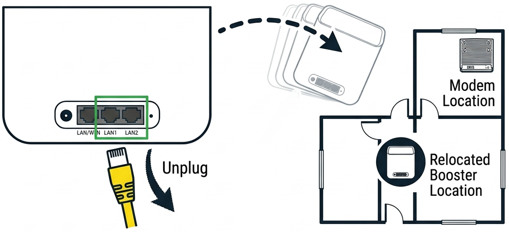
    Move the modem to a suitable location
     

  2. Power on again in the final location

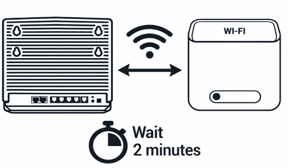
    Power on the HX510 in the desired location and allow approximately 2 minutes for it to reconnect to the VX420‑G2v modem. When the LED becomes solid white, setup is complete.
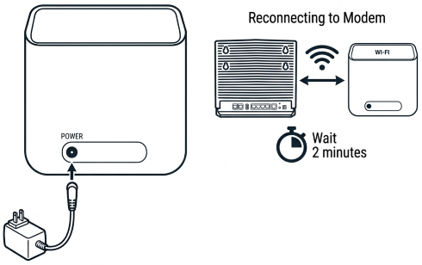
    Turn on and wait for 2 minutes
     

  3. Finish setup

    Once completed, the LED will become solid white. The pairing process is now finished.
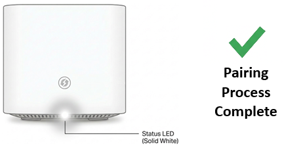
Pairing completed
 

Method 2 – Pairing by Aginet APP

  1. Confirm the modem is online

    Ensure that the Internet connection on your main modem is active. Verify that the Internet LED on the VX420-G2v or VX220-G2v modem is solid or flashing.
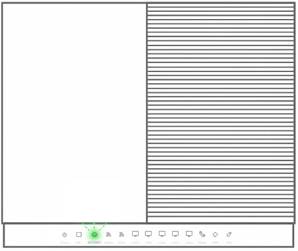
VX420-G2v modem internet light
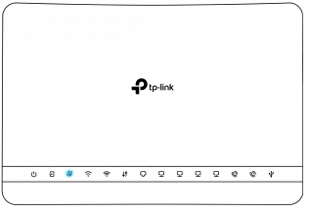
VX420-G2v

VX220 modem internet light

VX220-G2v


  1. Connect your mobile device to the modem Wi‑Fi

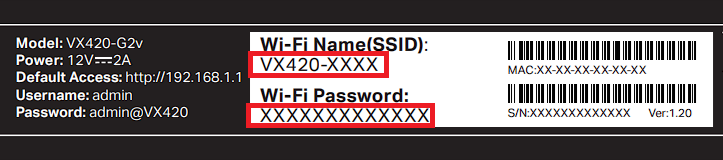
    Connect your mobile device to the Wi-Fi network of the VX420-G2v or VX220-G2v modem. The Wi-Fi SSID and password can be found on the product label. For the VX420-G2v, the label is located on the bottom of the device. For the VX220-G2v, the label is located on the back of the device.
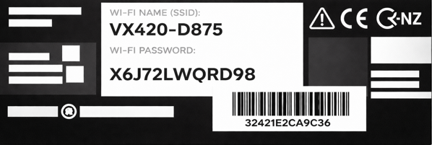
Password shown on product label
 

  1. Open the Aginet APP

    Launch the Aginet APP on your mobile device.
Aginet App Icon
 

  1. Install the APP if needed

    If the Aginet APP is not installed, download it from the appropriate APP store for Android or iOS.
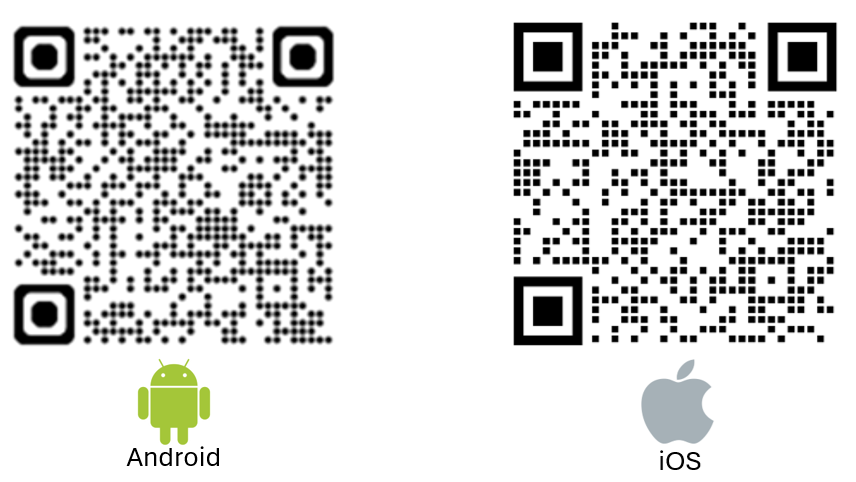
Scan to download your app
 

  1. Sign in to TP-link account

    Sign in to your TP-Link account. If you do not have an account yet, please select the option “Create a TP-Link ID” to create one first.
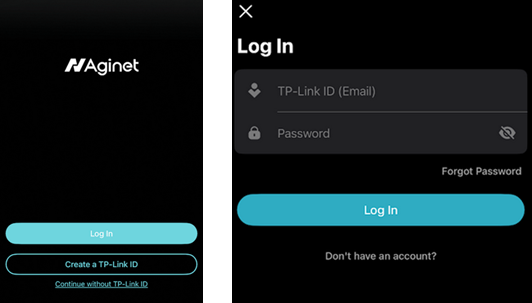
Sign in or create an account
 

  1. Login to your modem and add the HX510 to your network

    You need to log in to your modem. Check the modem username and password on the label, then enter them in the app.
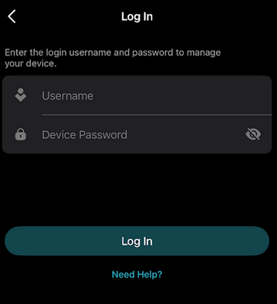
log in to your modem
 

  1. Adding the HX510 to your network

    After logging in to the modem, Tap the “+” icon in the top-right corner, and select “Add Agent” to begin pairing the HX510 Wi‑Fi Booster. 
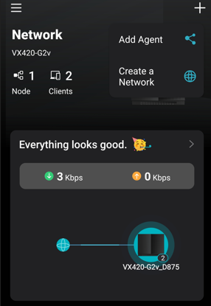
    Add agent using app
     

  2. Select Mesh Device

    Follow the in‑APP instructions and select “Mesh Device”.
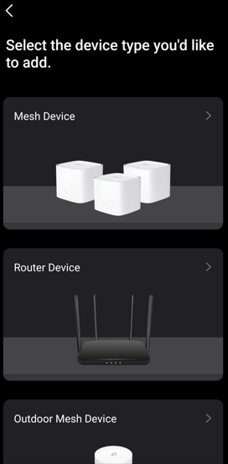
Select Mesh Device


  1. Choose a suitable location

    Place the HX510 in a suitable location within your premises and tap “Next” in the APP. For placement guidance, refer to the placement tips in this guide.
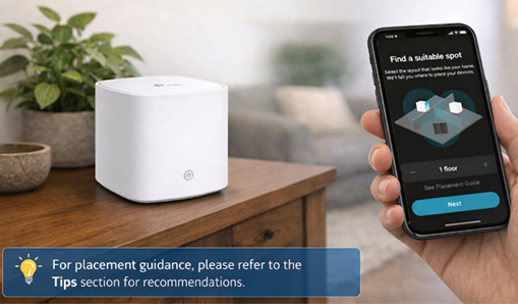
choose device location


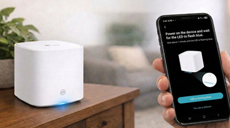
  1. Power on the HX510 and wait for discovery

    Power on the HX510. Wait until the LED indicator starts flashing blue slowly, then select “LED is flashing blue” in the APP.
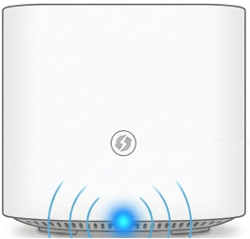
HX510 is ready
HX510 ready to be set up

Confirm in App

Confirm in the APP

If the HX510 is flashing blue but the APP is unable to discover it, move the HX510 closer to the modem router and try again.


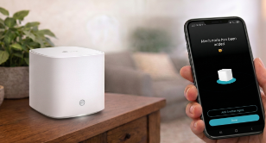
  1. Add the HX510 to your network

    Wait for the APP to discover the HX510 Mesh Booster. Once it is found, tap “Add as Agent” to add it to your network.
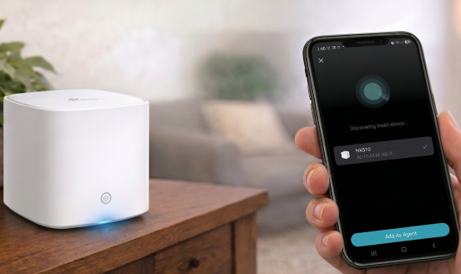
Add agent using app


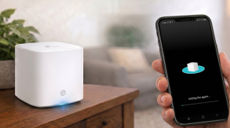
  1. Wait for pairing to complete

    Once the pairing process begins, the LED will flash blue rapidly. Please wait while the APP adds the HX510 Mesh Booster to your network. The pairing process may take up to 2 minutes to complete.
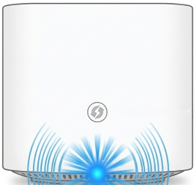
LED flashing blue rapidly
Pairing in progress

App adding agent

APP adding the agent

Wait 2 minutes


  1. Name the booster

    As the pairing process nears completion, the APP will prompt you to name the HX510. You can assign a name manually or select one based on its location so that it can be easily identified later during management.
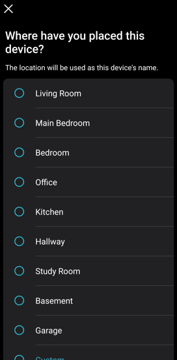
Name the device


  1. Finish setup

    Once completed, the LED will become solid white. The pairing process is now finished.
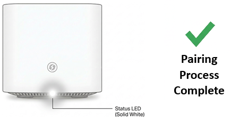
Pairing process complete

Solid white LED

HX510 added succesfully

HX510 has been successfully added by using APP
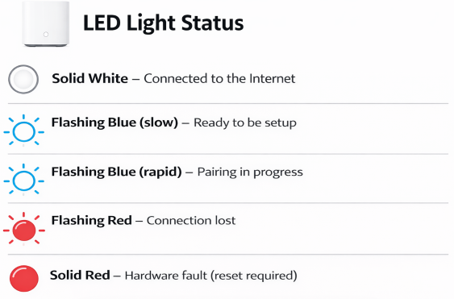
LED Status indicators

Tips: Placement Recommendations

  • Place the booster in a central location for optimal coverage.
  • Keep the booster elevated and avoid placing it behind metal or concrete structures.
  • Position the booster within two rooms of the modem where possible.
  • If you experience poor connectivity (e.g., red flashing LED), move the booster closer to the modem.

If you need setup help you can contact us here

Step 1. Check your black nbn® connection box

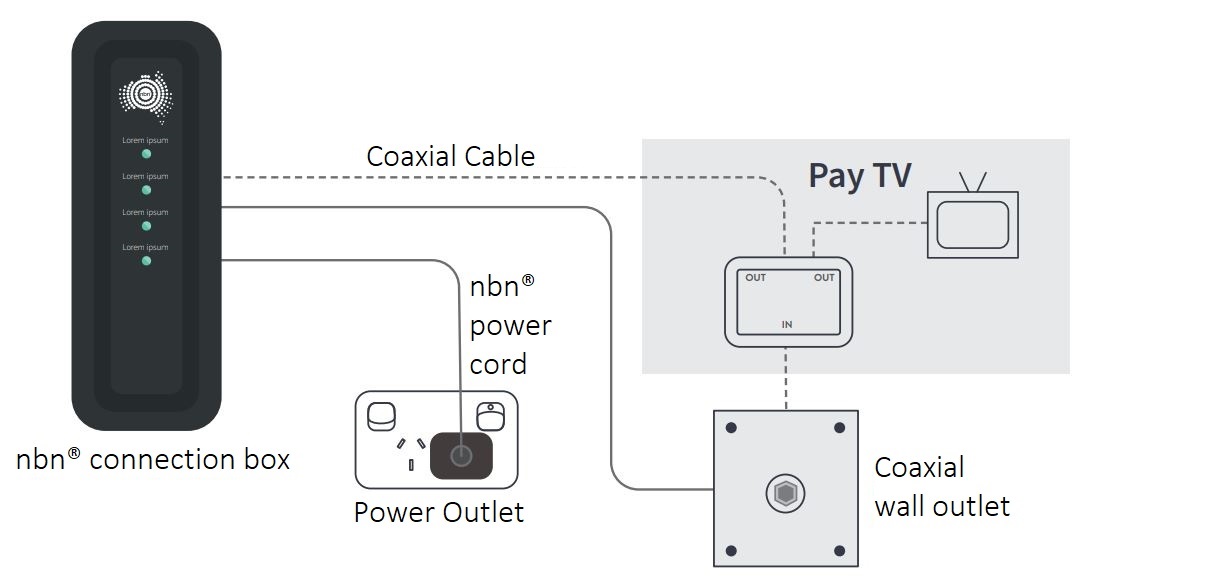
You should already have a black nbn connection box (pictured below) at your premises.

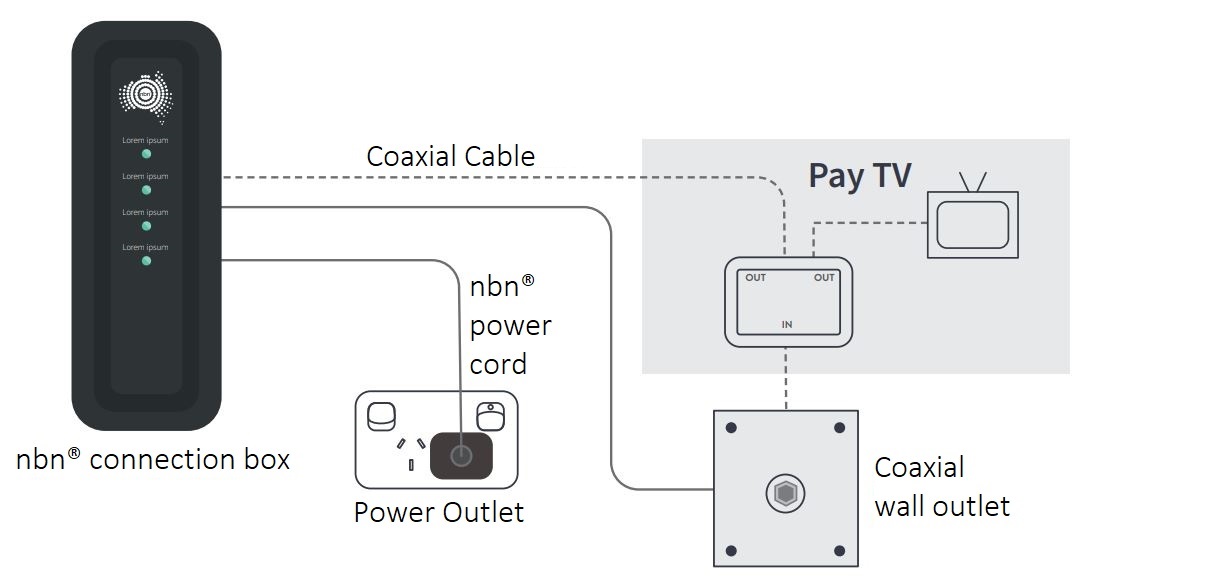
Make sure it’s connected to the power and your coaxial wall outlet. If it’s not connected, follow the instructions below*.

Black Box Setup

*NBN Connection Box design may vary

Connecting your black nbn box

  1. Plug the power supply into a Power Outlet.
  2. Connect the power supply to the black nbn box.
  3. Connect the Coaxial Cable from the port on your wall to the black nbn box.
    1. If you have Pay TV through your cable connection, you will need to use the supplied splitter from your brown box and follow the shaded area in the diagram above to plug in the cables.

If your nbn box is missing or damaged, please chat with our technical support team here and we'll arrange a replacement.


Step 2. Connect the modem

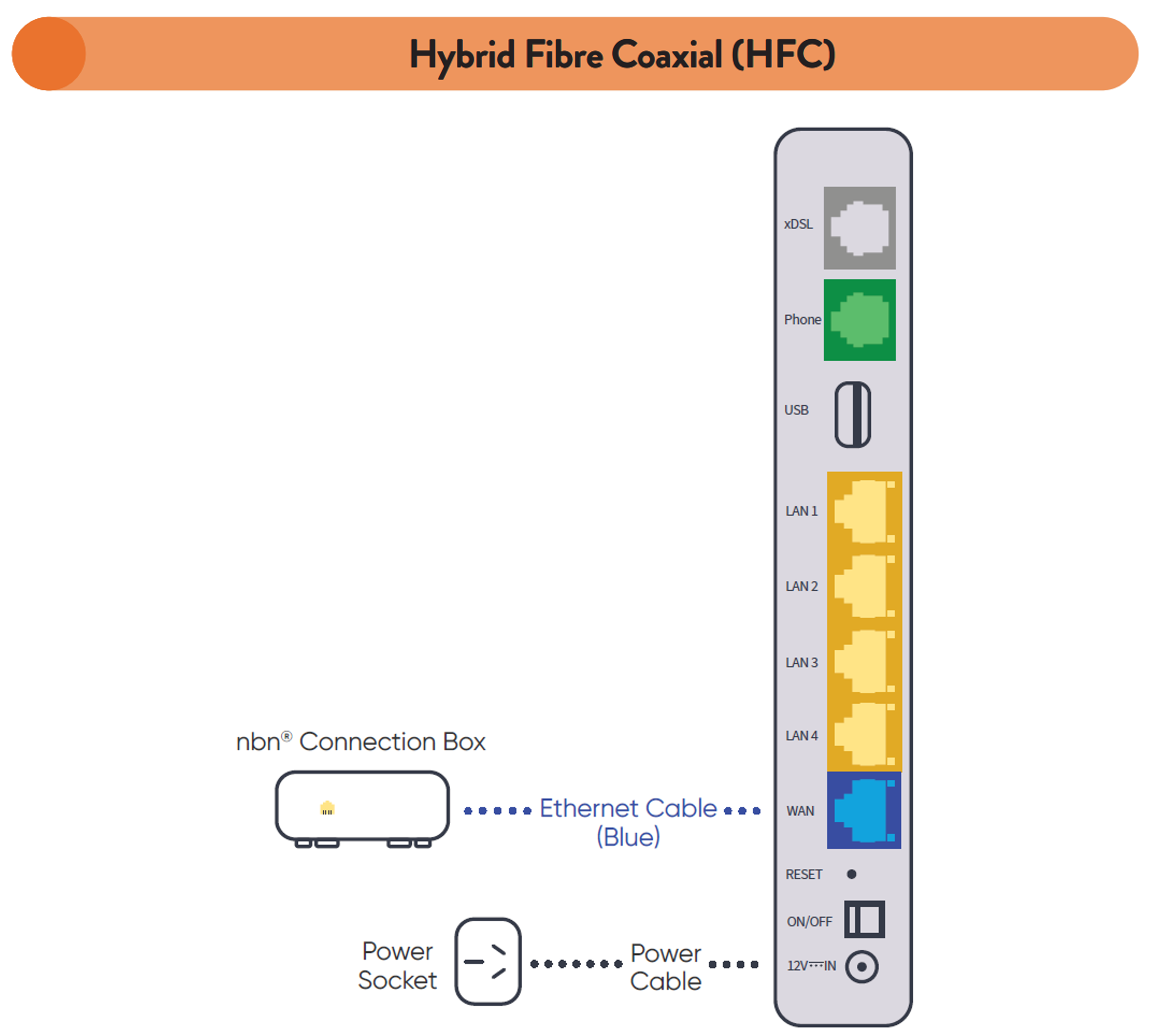
Follow the instructions below to connect your new Dodo Koan DG2144 modem to the nbn connection box.

  1. Use the blue ethernet cable provided with your modem to connect the WAN port on your modem to the UNI-D1 port on the nbn connection box. You must use the UNI-D1 port otherwise your service won’t work.

    DG2144 HFC Connection

  2. Turn on your modem and wait for the modem lights to turn on.


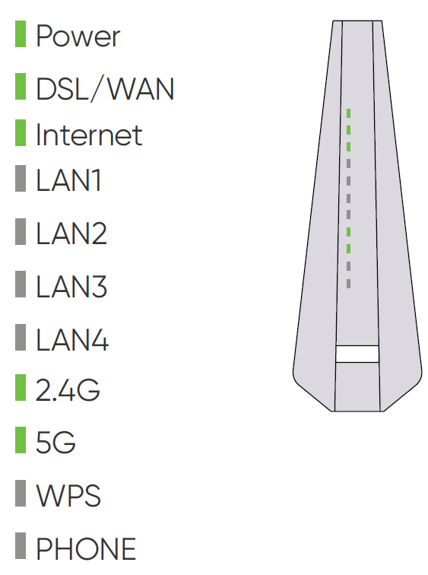
Step 3. Wait for the green lights

These lights should be illuminated on the front of the modem. This can take several minutes. Once the internet light is on your service is connected.

DG2144 Lights

If after 10 minutes these lights aren’t illuminated, get in touch with us for support.
 

Step 4. Connect your device

Connect wirelessly (Wi-Fi)

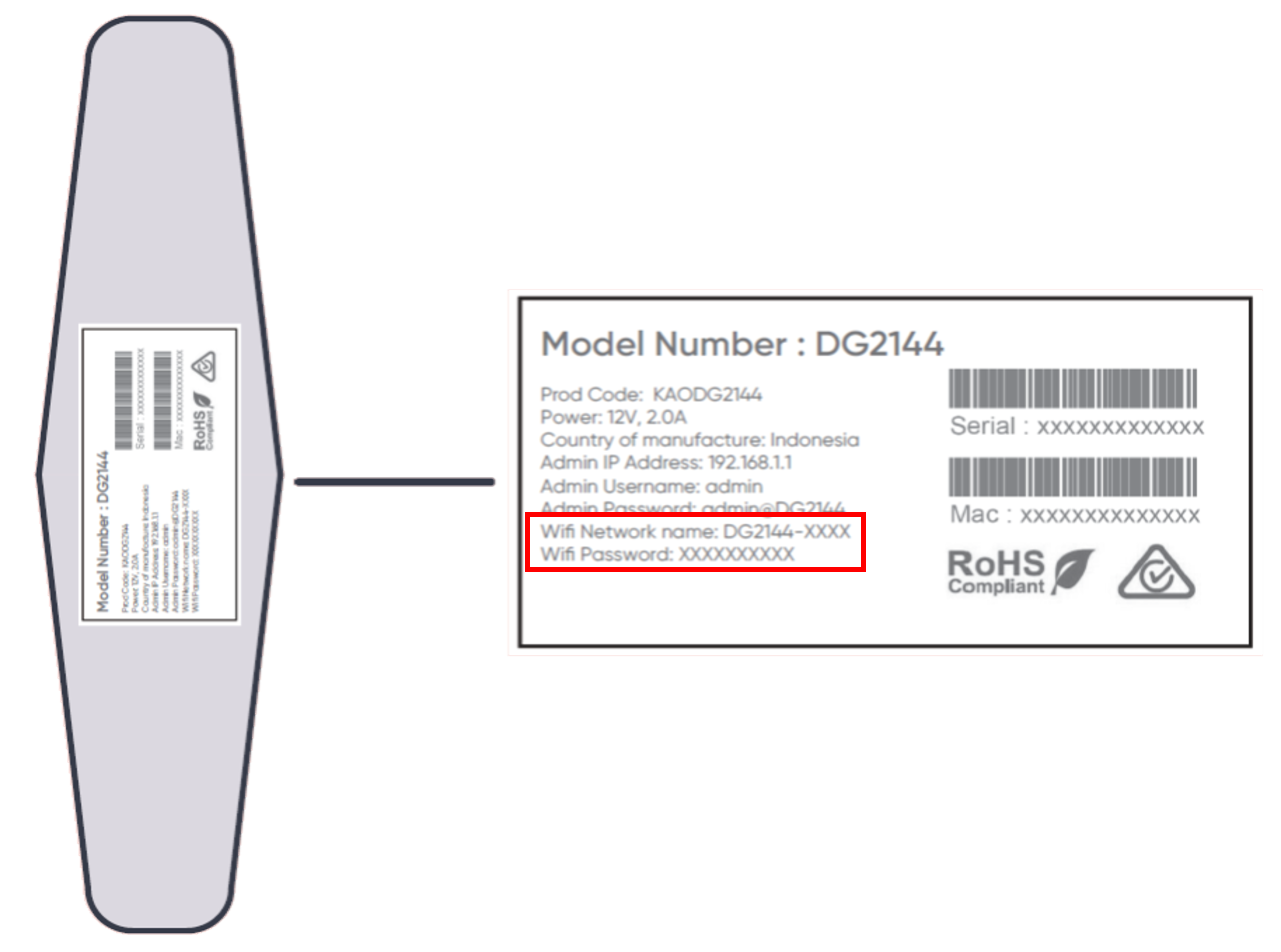
Find the Wi-Fi Name and Wi-Fi Password printed on the sticker on the base of the modem.

To connect, choose the Wi-Fi Name on your device, then type in the Wi-Fi Password when prompted.

The password is case sensitive.

Modem Wi-Fi Sticker


Connect with a cable

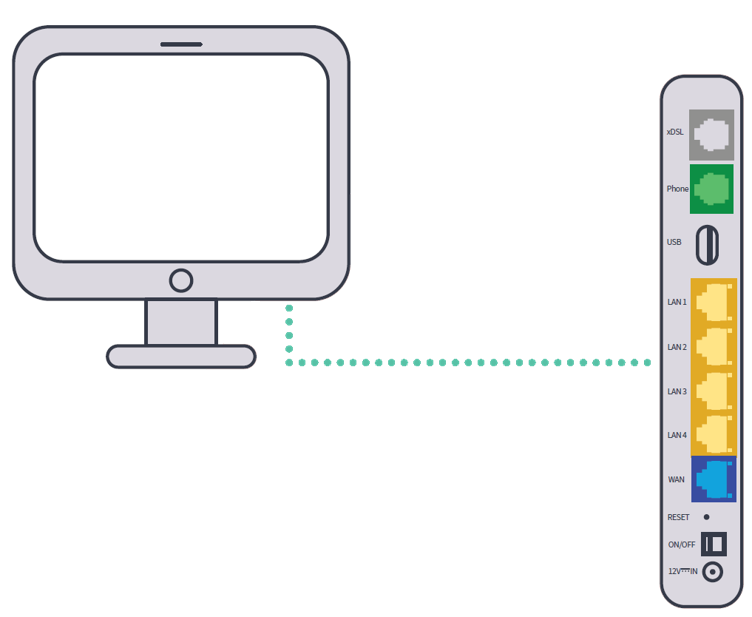
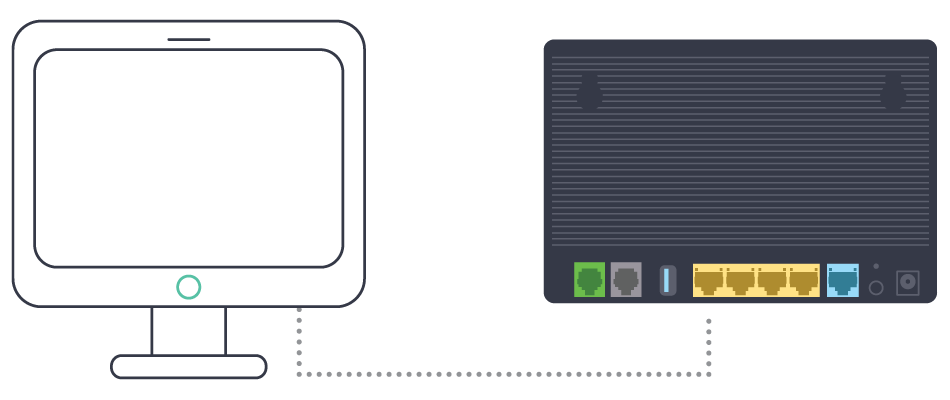
To connect a device, like a laptop or desktop computer, directly to the modem, plug one end of an ethernet (yellow) cable into a yellow LAN port on the back of the modem and the other end into your device.

DG2144 Modem Cable Connection

If you are still having issues connecting to the internet you can chat with our technical support team here or you can view our troubleshooting guides found here.

Download/View

Black nbn® Connection device set-up guide

Dodo KAON DG2144 Modem Setup Guide

Step 1. Check your white nbn® connection box

You should already have a White nbn connection box (pictured below) at your premises.

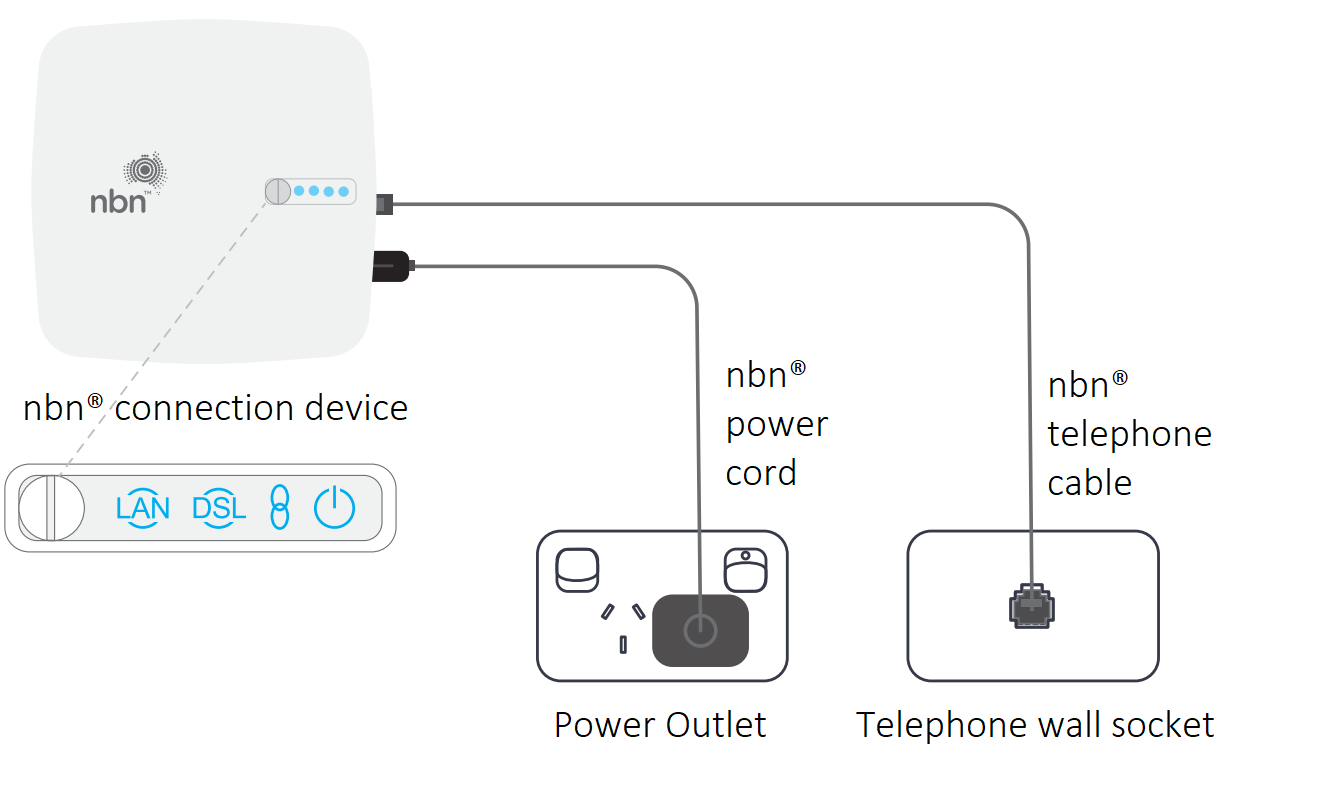
Make sure it’s connected to the power and your wall socket. If it’s not connected, follow the instructions below.

White Box Setup

Connecting your white nbn box

  1. Plug the power supply into a Power Outlet.

  2. Connect the power supply to the white nbn box.

  3. Connect the telephone cable from the port on your wall to the white nbn box.

If your nbn box is missing or damaged, please chat with our technical support team here and we'll arrange a replacement.

Step 2. Connect the modem

Follow the instructions below to connect your new Dodo Koan DG2144 modem to the nbn connection box.

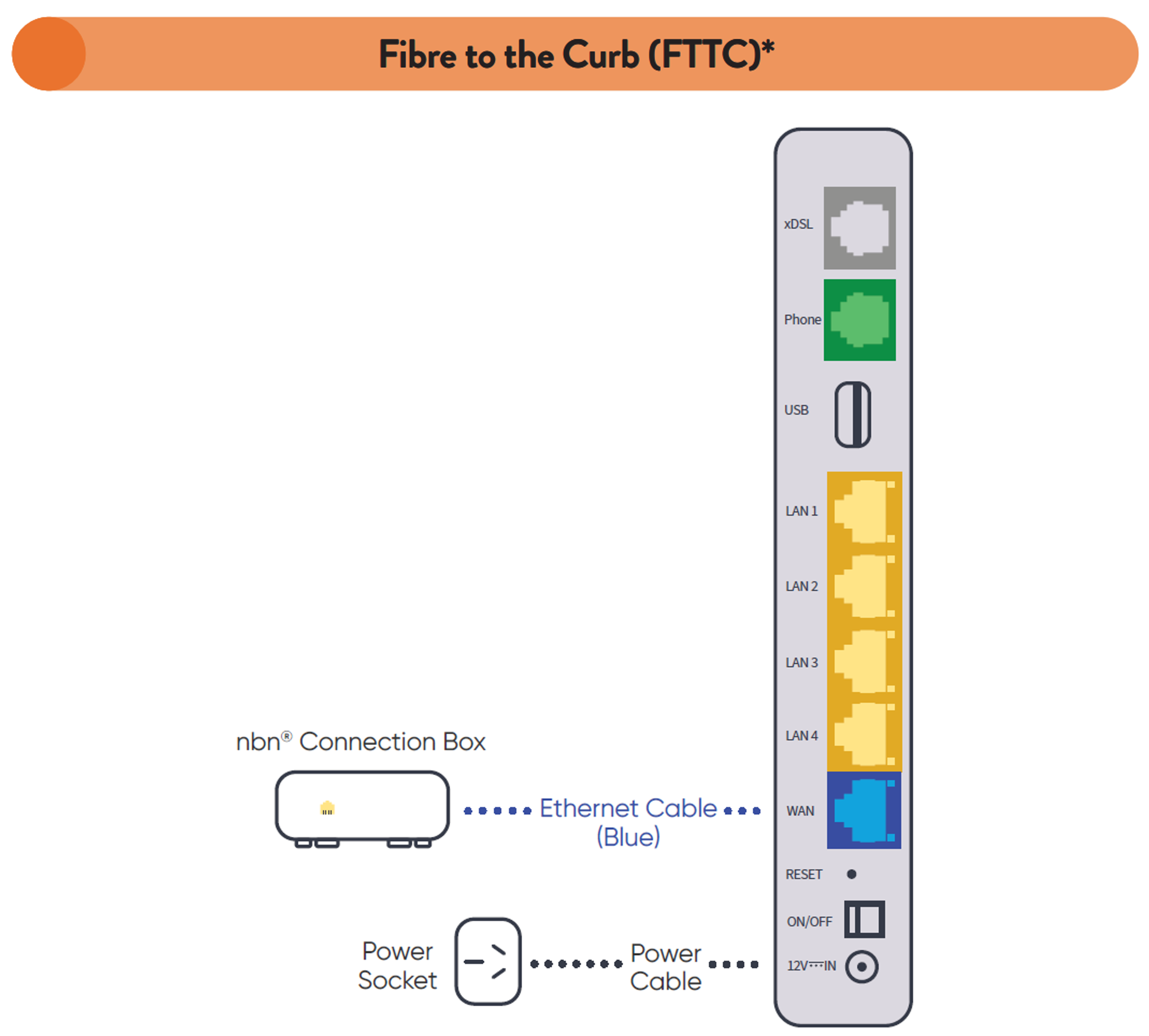
  1. Use the blue ethernet cable provided with your modem to connect the WAN port on your modem to the Gateway port on the back of the nbn connection box.

    DG2144 FTTC Setup

  2. Turn on your modem and wait for the modem lights to turn on.


Step 3. Wait for the green lights

These lights should be illuminated on the front of the modem. This can take several minutes. Once the internet light is on your service is connected.

DG2144 Lights

If after 10 minutes these lights aren’t illuminated, get in touch with us for support.
 

Step 4. Connect your device

Connect wirelessly (Wi-Fi)

Find the Wi-Fi Name and Wi-Fi Password printed on the sticker on the base of the modem.

To connect, choose the Wi-Fi Name on your device, then type in the Wi-Fi Password when prompted.

The password is case sensitive.

Modem Wi-Fi Sticker


Connect with a cable

To connect a device, like a laptop or desktop computer, directly to the modem, plug one end of an ethernet (yellow) cable into a yellow LAN port on the back of the modem and the other end into your device.

DG2144 Modem Cable Connection

If you are still having issues connecting to the internet you can chat with our technical support team here or you can view our troubleshooting guides found here.
 

Download/View

White nbn® Connection device set-up guide

Dodo KAON DG2144 Modem Setup Guide

Step 1. nbn® hardware setup

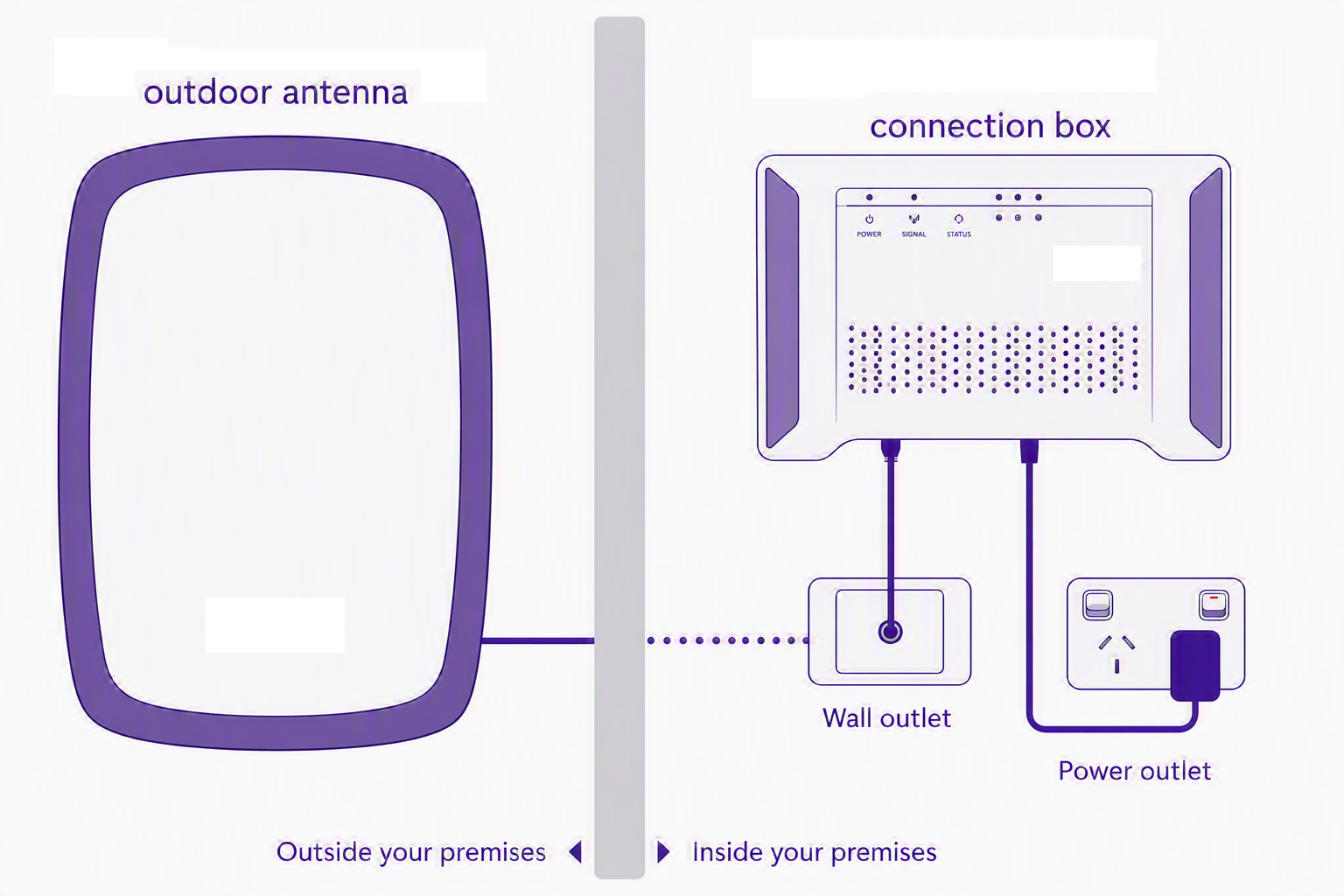
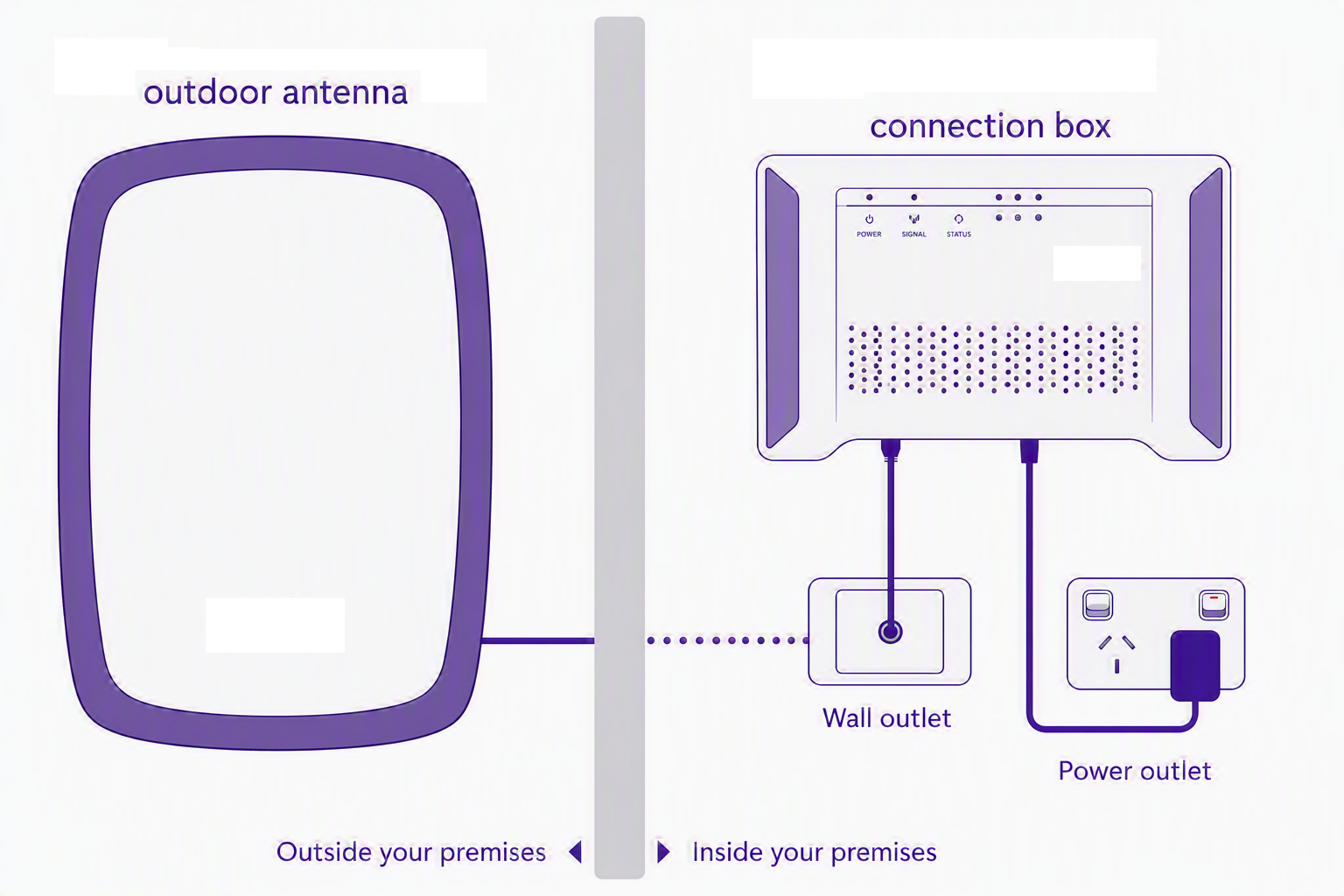
Your Fixed Wireless antenna and connection box should already be installed in your premises.
Make sure the connection box is connected to the wall outlet and a power socket and switched on before connecting your modem.

NBN Box Setup

Image courtesy of nbn
*nbn Connection Box may vary in design. 

If your nbn box is missing or damaged, please chat with our technical support team here and we'll arrange a replacement.
 

Step 2. Connect the modem

Follow the instructions below to connect your new Dodo Kaon 2144 modem to the nbn connection box.

  1. Use the blue ethernet cable provided with your modem to connect the WAN port on your modem to the UNI-D1 port on the nbn connection box. You must use the UNI-D1 port otherwise your service won’t work.

Fixed Wireless Modem Connection

*Your nbn connection box may have 1 or 4 ports. Connect to Port 1

  1. Turn on your modem and wait for the modem lights to turn on.


Step 3. Wait for the green lights

These lights should be illuminated on the front of the modem. This can take several minutes. Once the internet light is on your service is connected.

DG2144 Lights

If after 10 minutes these lights aren’t illuminated, get in touch with us for support.
 

Step 4. Connect your device

Connect wirelessly (Wi-Fi)

Find the Wi-Fi Name and Wi-Fi Password printed on the sticker on the base of the modem.

To connect, choose the Wi-Fi Name on your device, then type in the Wi-Fi Password when prompted.

The password is case sensitive.

Modem Wi-Fi Sticker


Connect with a cable

To connect a device, like a laptop or desktop computer, directly to the modem, plug one end of an ethernet (yellow) cable into a yellow LAN port on the back of the modem and the other end into your device.

DG2144 Modem Cable Connection

If you are still having issues connecting to the internet you can chat with our technical support team here or you can view our troubleshooting guides found here.
Download/View
Dodo KAON DG2144 Modem Setup Guide

Step 1. nbn® hardware setup

Your Fibre to the Premises connection box should already be installed in your premises. Make sure the connection box is connected to the wall outlet and a power socket and switched on before connecting your modem.

Image of FTTP Box Setup

Image courtesy of nbn. Please note that nbn Connection Box designs may vary.

If your nbn box is missing or damaged, please chat with our technical support team here and we'll arrange a replacement.
 

Step 2. Connect the modem

Follow the instructions below to connect your new Dodo Kaon DG2144 modem to the nbn connection box.

  1. Use the blue ethernet cable provided with your modem to connect the WAN port on your modem to the UNI-D1 port on the nbn connection box. You must use the UNI-D1 port otherwise your service won’t work.

    DG2144 FTTP Connection

Your nbn connection box may have 1 or 4 ports. Connect to Port 1


  1. Turn on your modem and wait for the modem lights to turn on.


Step 3. Wait for the green lights

These lights should be illuminated on the front of the modem. This can take several minutes. Once the internet light is on your service is connected.

DG2144 Lights

If after 10 minutes these lights aren’t illuminated, get in touch with us for support.
 

Step 4. Connect your device

Connect wirelessly (Wi-Fi)

Find the Wi-Fi Name and Wi-Fi Password printed on the sticker on the base of the modem.

To connect, choose the Wi-Fi Name on your device, then type in the Wi-Fi Password when prompted.

The password is case sensitive.

Modem Wi-Fi Sticker


Connect with a cable

To connect a device, like a laptop or desktop computer, directly to the modem, plug one end of an ethernet (yellow) cable into a yellow LAN port on the back of the modem and the other end into your device.

DG2144 Modem Cable Connection

If you are still having issues connecting to the internet you can chat with our technical support team here or you can view our troubleshooting guides found here.
Download/View
Dodo KAON DG2144 Modem Setup Guide

Step 1. nbn® hardware setup

As your connection type is Fibre to the Node (FTTN) there won’t be any nbn hardware to set up in your premises. You will connect your modem directly to your main telephone socket.

 
Step 2. Connect the modem

Follow the instructions below to connect your new Dodo Kaon DG2144 modem to the nbn connection box.

  1. Use the grey DSL cable provided with your modem to connect the DSL port on your modem to the main telephone socket on your wall. The DSL cable looks just like a normal phone cable.

DG2144 FTTN Connection

  1. Turn on your modem and wait for the modem lights to turn on.
 

Step 3. Wait for the green lights

These lights should be illuminated on the front of the modem. This can take several minutes. Once the internet light is on your service is connected.

DG2144 Lights

If after 10 minutes these lights aren’t illuminated, get in touch with us for support.
 

Step 4. Connect your device

Connect wirelessly (Wi-Fi)

Find the Wi-Fi Name and Wi-Fi Password printed on the sticker on the base of the modem.

To connect, choose the Wi-Fi Name on your device, then type in the Wi-Fi Password when prompted.

The password is case sensitive.

Modem Wi-Fi Sticker


Connect with a cable

To connect a device, like a laptop or desktop computer, directly to the modem, plug one end of an ethernet (yellow) cable into a yellow LAN port on the back of the modem and the other end into your device.

DG2144 Modem Cable Connection

If you are still having issues connecting to the internet you can chat with our technical support team here or you can view our troubleshooting guides found here.

Download/View
Dodo KAON DG2144 Modem Setup Guide

Step 1. nbn® hardware setup

As your connection type is Fibre to the Node (FTTB) there won’t be any nbn hardware to set up in your premises. You will connect your modem directly to your main telephone socket.

 
Step 2. Connect the modem

Follow the instructions below to connect your new Dodo Kaon DG2144 modem to the nbn connection box.

  1. Use the grey DSL cable provided with your modem to connect the DSL port on your modem to the main telephone socket on your wall. The DSL cable looks just like a normal phone cable.

DG2144 FTTB Connection

  1. Turn on your modem and wait for the modem lights to turn on.


Step 3. Wait for the green lights

These lights should be illuminated on the front of the modem. This can take several minutes. Once the internet light is on your service is connected.

DG2144 Lights

If after 10 minutes these lights aren’t illuminated, get in touch with us for support.
 

Step 4. Connect your device

Connect wirelessly (Wi-Fi)

Find the Wi-Fi Name and Wi-Fi Password printed on the sticker on the base of the modem.

To connect, choose the Wi-Fi Name on your device, then type in the Wi-Fi Password when prompted.

The password is case sensitive.

Modem Wi-Fi Sticker


Connect with a cable

To connect a device, like a laptop or desktop computer, directly to the modem, plug one end of an ethernet (yellow) cable into a yellow LAN port on the back of the modem and the other end into your device.

DG2144 Modem Cable Connection

If you are still having issues connecting to the internet you can chat with our technical support team here or you can view our troubleshooting guides found here.

Download/View
Dodo KAON DG2144 Modem Setup Guide

Step 1. Check your black nbn® connection box

You should already have a black nbn connection box (pictured below) at your premises.

Make sure it’s connected to the power and your coaxial wall outlet. If it’s not connected, follow the instructions below.

Black Box Setup

*NBN Connection Box design may vary

Connecting your black nbn box

  1. Plug the power supply into a Power Outlet.
  2. Connect the power supply to the black nbn box.
  3. Connect the Coaxial Cable from the port on your wall to the black nbn box.
    1. If you have Pay TV through your cable connection, you will need to use the supplied splitter from your brown box and follow the shaded area in the diagram above to plug in the cables.

If your nbn box is missing or damaged, please chat with our technical support team here and we'll arrange a replacement.


Step 2. Connect your modem

Follow the instructions below to connect your new Dodo TP-Link VX420 modem to the black nbn connection box.

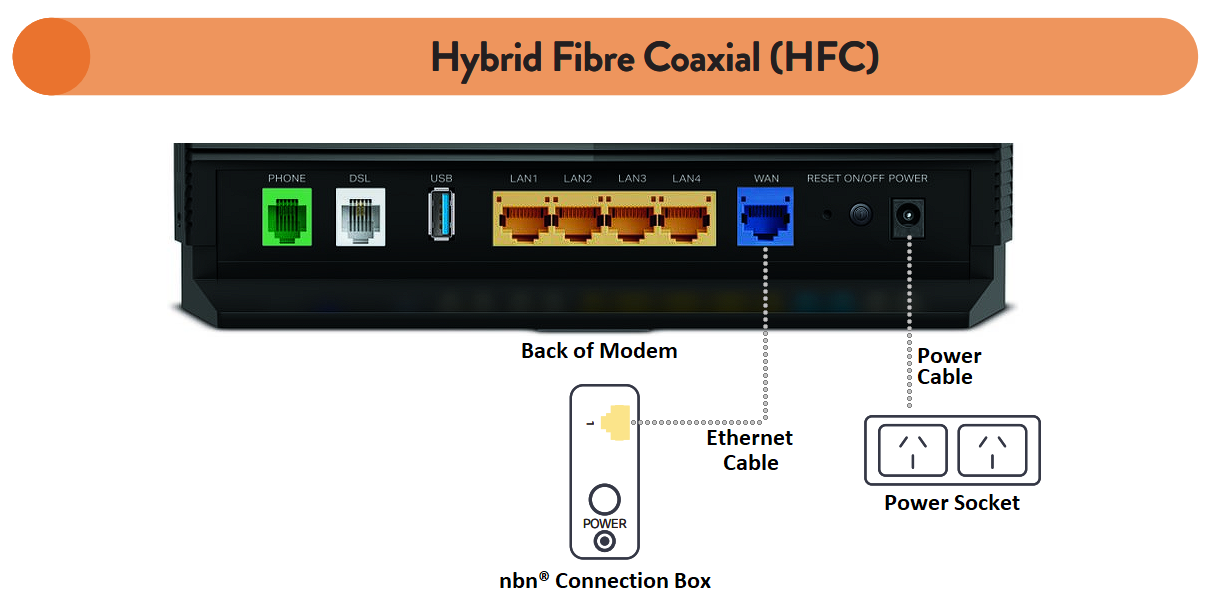
  1. Use the blue ethernet cable provided with your modem to connect the WAN port on your modem to the UNI-D1 port on the back of the nbn connection box. If your connection box has two ports (a UNI-D1 and a UNI-D2), make sure you use UNI-D1.

    HFC Box Setup

  2. Turn on your modem and wait for the modem lights to turn on.


Step 3. Wait for the green lights

It can take up to 10 minutes for your modem to connect to the internet and set itself up. Make sure you give it time to do this configuration.

When the below lights are illuminated, you know you’re connected and your service is ready to use.

If after 10 minutes these lights aren’t illuminated, get in touch with us for support.

VX420 Lights

 
Step 4. Connect your device

Wi-Fi

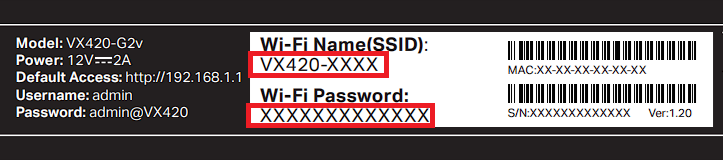
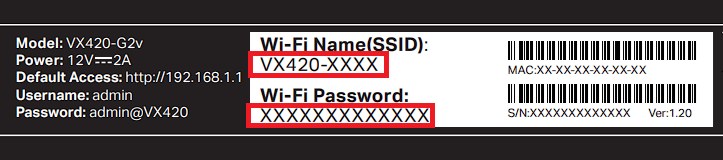
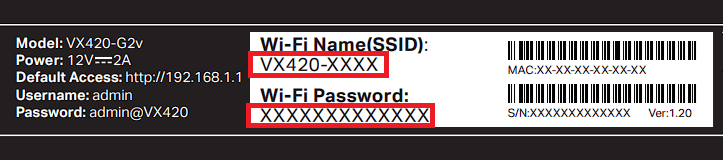
  • Find the Wi-Fi Name and Wi-Fi Password printed on the sticker on the bottom of the modem.

  • To connect, choose the Wi-Fi Name on your device, then type in the Wi-Fi Password when prompted. The password is case sensitive.

VX420 WiFi


Cable

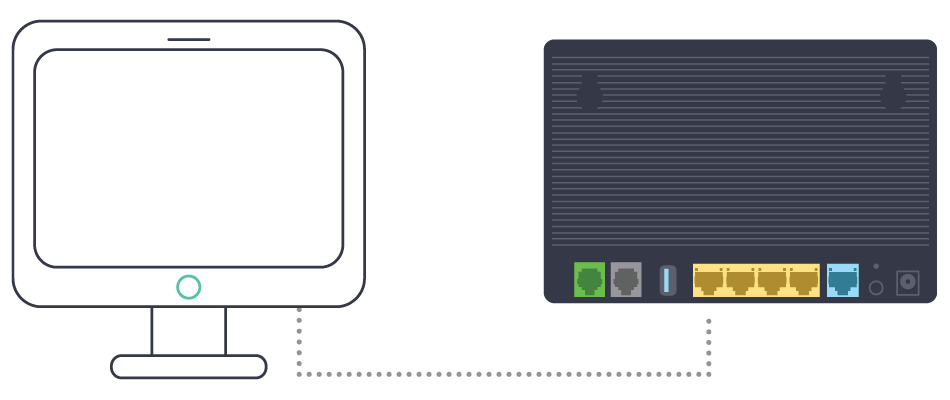
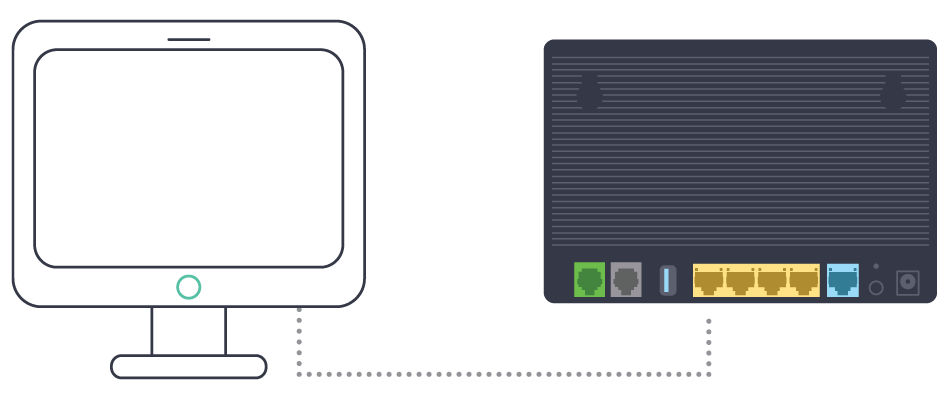
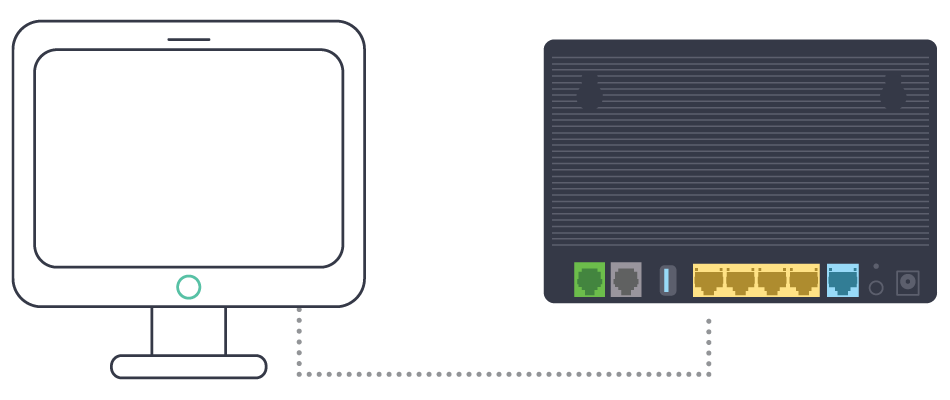
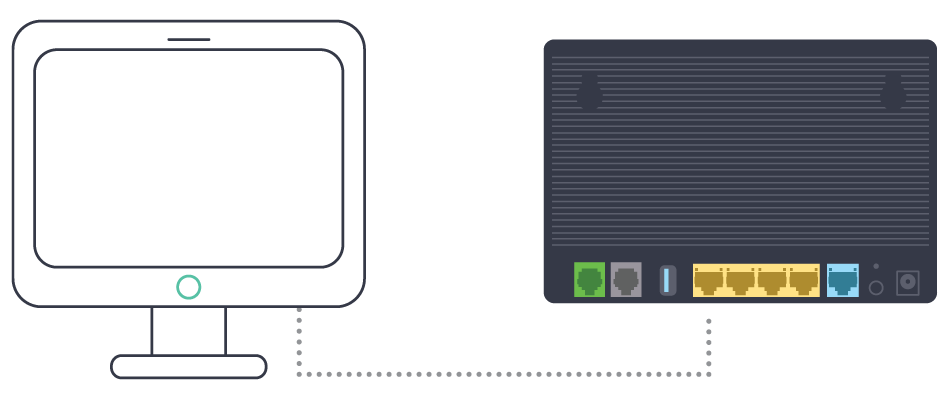
  • To connect a device, like a laptop or desktop computer, directly to a modem, plug one end of the supplied ethernet (yellow) cable into a yellow LAN port on the back of the modem and the other into your device.

 VX420 Ethernet

If you are still having issues connecting to the internet you can chat with our technical support team here or you can view our troubleshooting guides found here.


Download/View

Black nbn® Connection device set-up guide

TP LINK VX420 Modem Setup Guide

Step 1. Check your white nbn® connection box

You should already have a White nbn connection box (pictured below) at your premises.

Make sure it’s connected to the power and your wall socket. If it’s not connected, follow the instructions below.

White NBN Box Setup

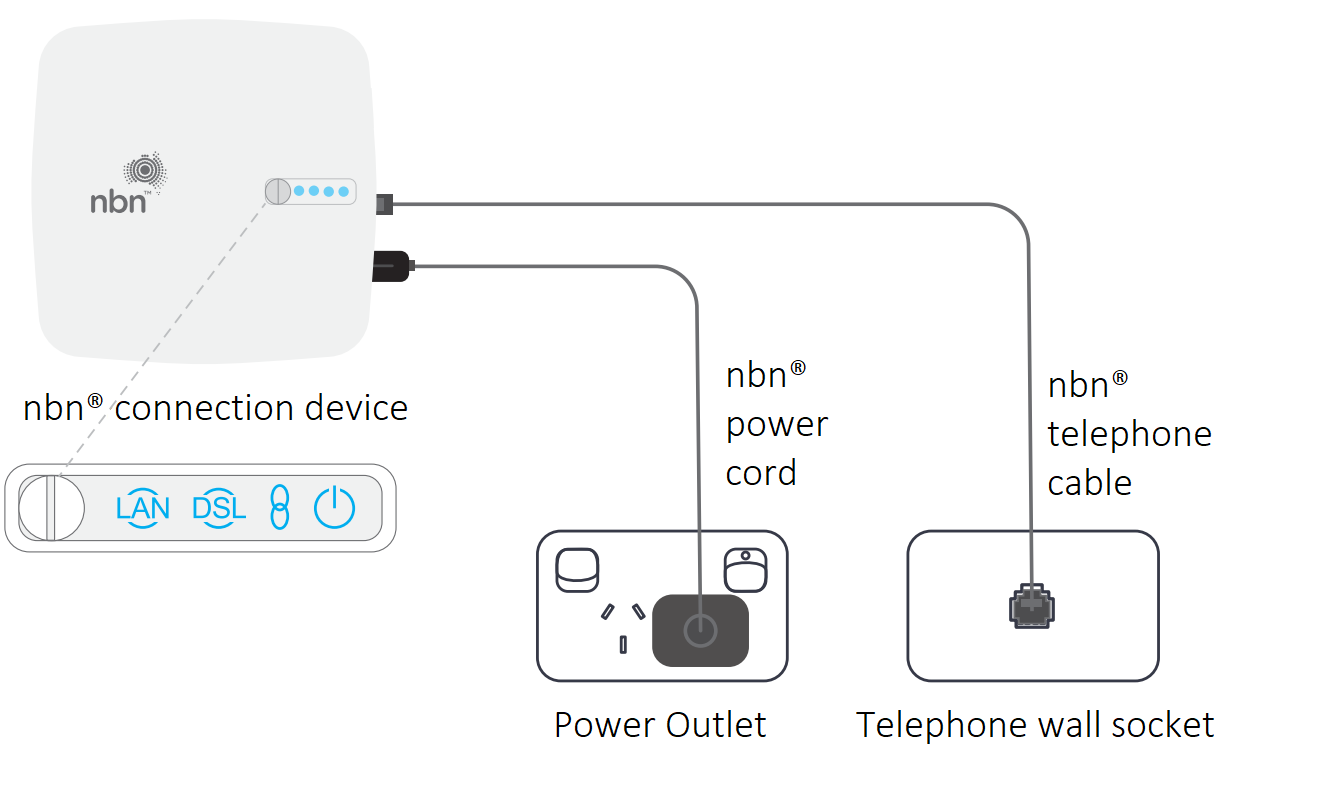
Connecting your white nbn box

  1. Plug the power supply into a Power Outlet.

  2. Connect the power supply to the white nbn box.

  3. Connect the telephone cable from the port on your wall to the white nbn box.

If your nbn box is missing or damaged, please chat with our technical support team here and we'll arrange a replacement.


Step 2. Connect the modem

Follow the instructions below to connect your new VX420 modem to the white nbn connection box.

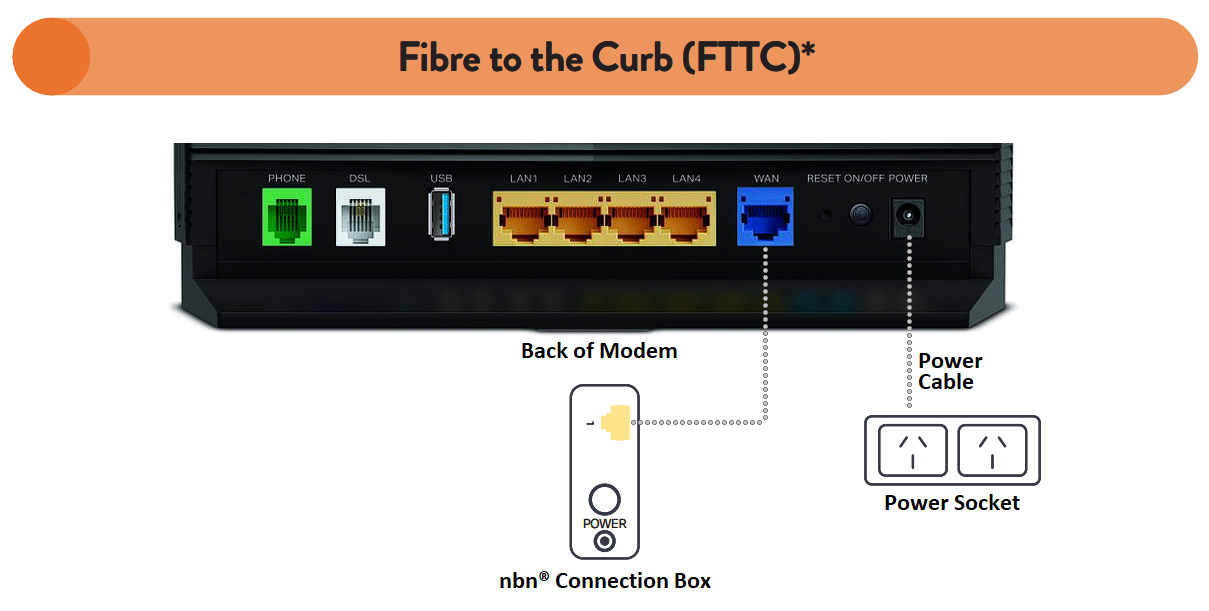
1. Use the blue ethernet cable provided with your modem to connect the WAN port on your modem to the Gateway port on the back of the nbn connection box.

VX420 FTTC Setup

  1. Turn on your modem and wait for the modem lights to turn on.


Step 3. Wait for the green lights

It can take up to 10 minutes for your modem to connect to the internet and set itself up. Make sure you give it time to do this configuration.

When the below lights are illuminated, you know you’re connected and your service is ready to use.

If after 10 minutes these lights aren’t illuminated, get in touch with us for support.

Modem Lights


Step 4. Connect your device

Connect wirelessly (Wi-Fi):

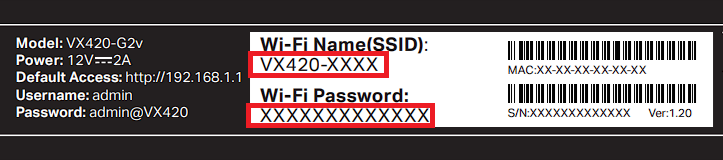
  • Find the Wi-Fi Name and Wi-Fi Password printed on the sticker on the bottom of the modem.
  • To connect, choose the Wi-Fi Name on your device, then type in the Wi-Fi Password when prompted. The password is case sensitive.

WiFi Sticker


Connect with a cable:

  • To connect a device, like a laptop or desktop computer, directly to a modem, plug one end of the supplied ethernet (yellow) cable into a yellow LAN port on the back of the modem and the other into your device.

Ethernet Setup

If you are still having issues connecting to the internet you can chat with our technical support team here or you can view our troubleshooting guides found here.


Download/View

White nbn® Connection device set-up guide

TP LINK VX420 Modem Setup Guide

Step 1. nbn® hardware setup

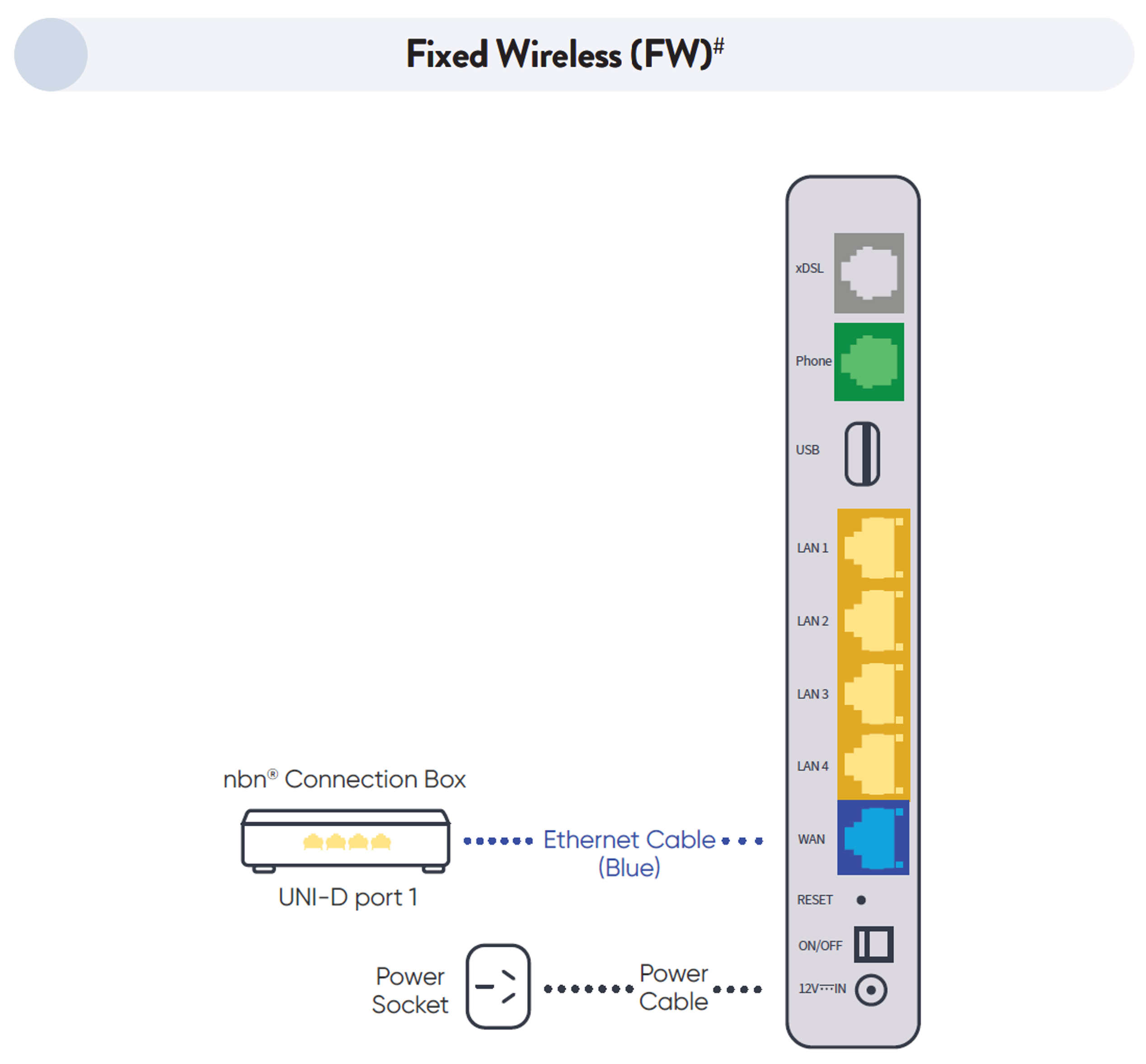
Your Fixed Wireless antenna and connection box should already be installed in your premises. Make sure the connection box is connected to the wall outlet and a power socket and switched on before connecting your modem.

Box Setup

Image courtesy of nbn
*nbn Connection Box may vary in design.

If your nbn box is missing or damaged, please chat with our technical support team here and we'll arrange a replacement.


Step 2. Connect the modem


Follow the instructions below to connect your new VX420 modem to the nbn connection box.

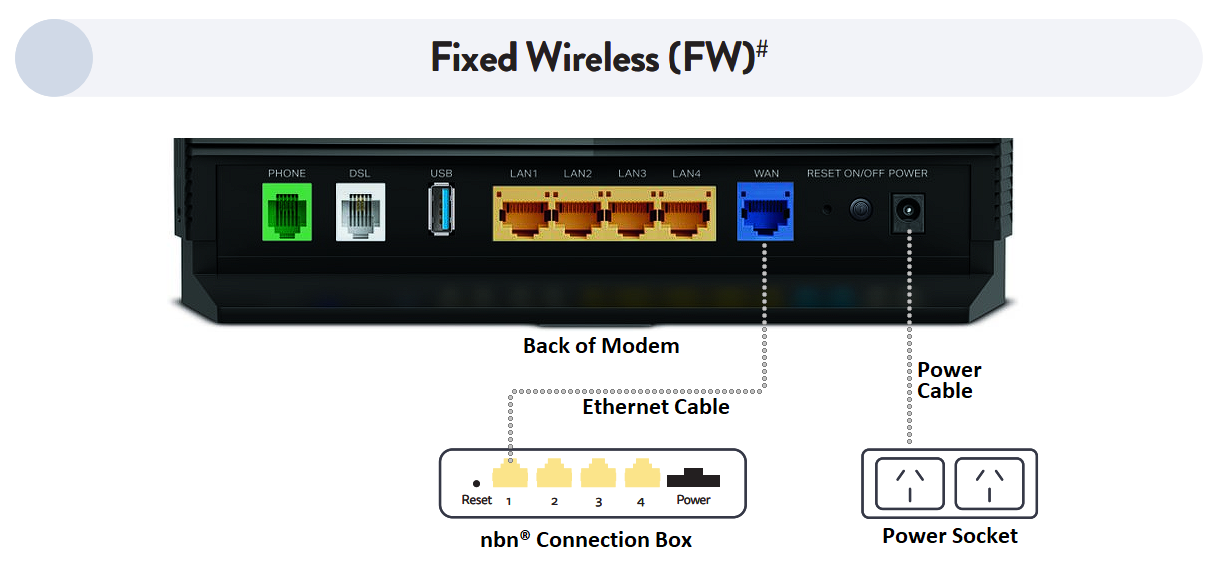
  1. Use the blue ethernet cable provided with your modem to connect the WAN port on your modem to the UNI-D1 port on the nbn connection box. You must use the UNI-D1 port otherwise your service won’t work.

Modem Setup

*Your nbn connection box may have 1 or 4 ports. Connect to Port 1

  1. Turn on your modem and wait for the modem lights to turn on.


Step 3. Wait for the green lights

It can take up to 10 minutes for your modem to connect to the internet and set itself up. Make sure you give it time to do this configuration.

When the below lights are illuminated, you know you’re connected and your service is ready to use.

If after 10 minutes these lights aren’t illuminated, get in touch with us for support.

FW Lights
 
 
Step 4. Connect your device

Connect wirelessly (Wi-Fi):

  • Find the Wi-Fi Name and Wi-Fi Password printed on the sticker on the bottom of the modem.
  • To connect, choose the Wi-Fi Name on your device, then type in the Wi-Fi Password when prompted. The password is case sensitive.

WiFi Sticker


Connect with a cable:

  • To connect a device, like a laptop or desktop computer, directly to a modem, plug one end of the supplied ethernet (yellow) cable into a yellow LAN port on the back of the modem and the other into your device.

Ethernet Setup

If you are still having issues connecting to the internet you can chat with our technical support team here or you can view our troubleshooting guides found here.


Download/View

TP LINK VX420 Modem Setup Guide

Step 1. nbn® hardware setup

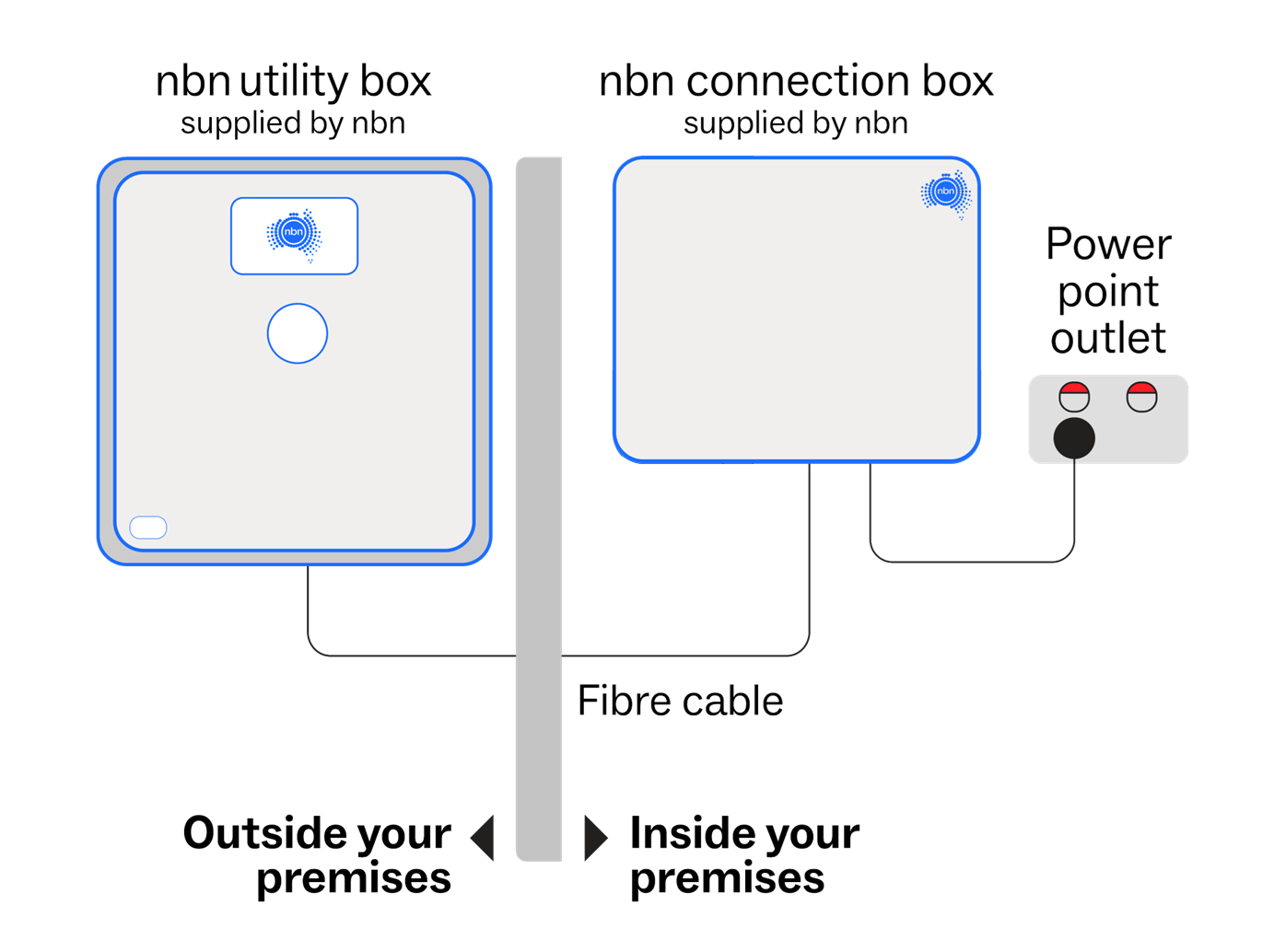
Your Fibre to the Premises connection box should already be installed in your premises. Make sure the connection box is connected to the wall outlet and a power socket and switched on before connecting your modem.

Image of FTTP Box Setup

Image courtesy of nbn. Please note that nbn Connection Box designs may vary.

If your nbn box is missing or damaged, please chat with our technical support team here and we'll arrange a replacement.


Step 2. Connect the modem

Follow the instructions below to connect your new VX420 modem to the nbn connection box.

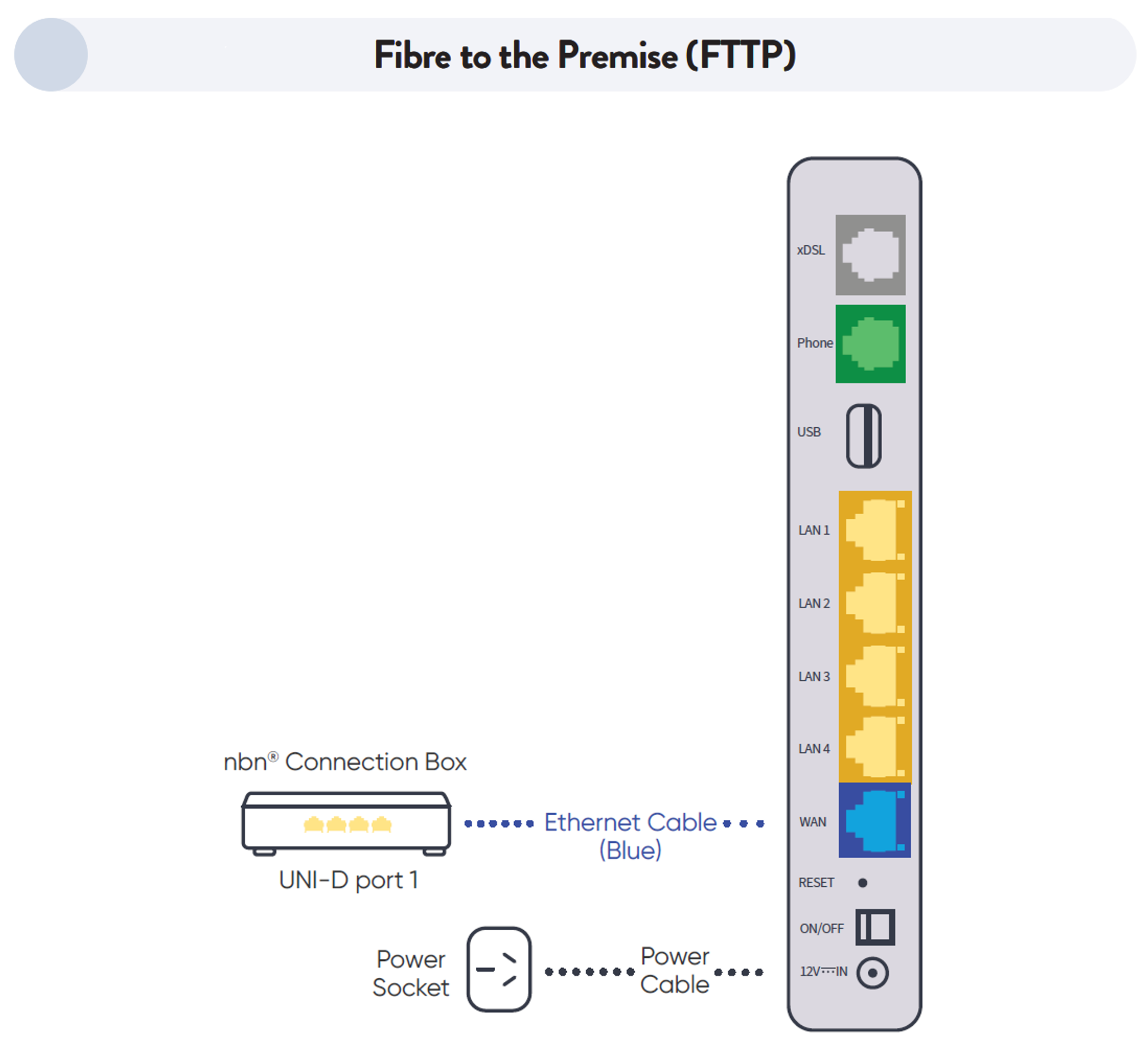
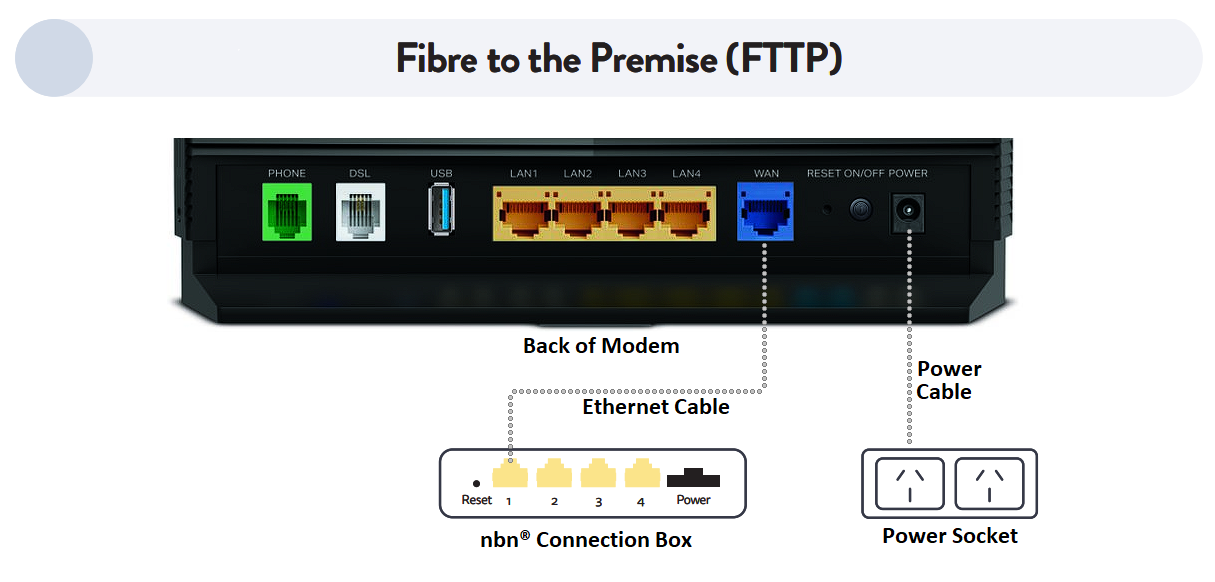
  1. Use the blue ethernet cable provided with your modem to connect the WAN port on your modem to the UNI-D1 port on the nbn connection box. You must use the UNI-D1 port otherwise your service won’t work.

FTTP Modem Setup

Your nbn connection box may have 1 or 4 ports. Connect to Port 1

  1. Turn on your modem and wait for the modem lights to turn on.


Step 3. Wait for the green lights

It can take up to 10 minutes for your modem to connect to the internet and set itself up. Make sure you give it time to do this configuration.

When the below lights are illuminated, you know you’re connected and your service is ready to use.

If after 10 minutes these lights aren’t illuminated, get in touch with us for support.

Modem Lights


Step 4. Connect your device

Connect wirelessly (Wi-Fi):

  • Find the Wi-Fi Name and Wi-Fi Password printed on the sticker on the bottom of the modem.
  • To connect, choose the Wi-Fi Name on your device, then type in the Wi-Fi Password when prompted. The password is case sensitive.
WiFi Sticker


Cable

  • To connect a device, like a laptop or desktop computer, directly to a modem, plug one end of the supplied ethernet (yellow) cable into a yellow LAN port on the back of the modem and the other into your device.
Ethernet Setup

If you are still having issues connecting to the internet you can chat with our technical support team here or you can view our troubleshooting guides found here.


Download/View

TP LINK VX420 Modem Setup Guide

Step 1. nbn® hardware setup

As your connection type is Fibre to the Node (FTTN) there won’t be any nbn hardware to set up in your premises. You will connect your modem directly to your main telephone socket.

 
Step 2. Connect the modem

Follow the instructions below to connect your new VX420 modem to the nbn connection box.

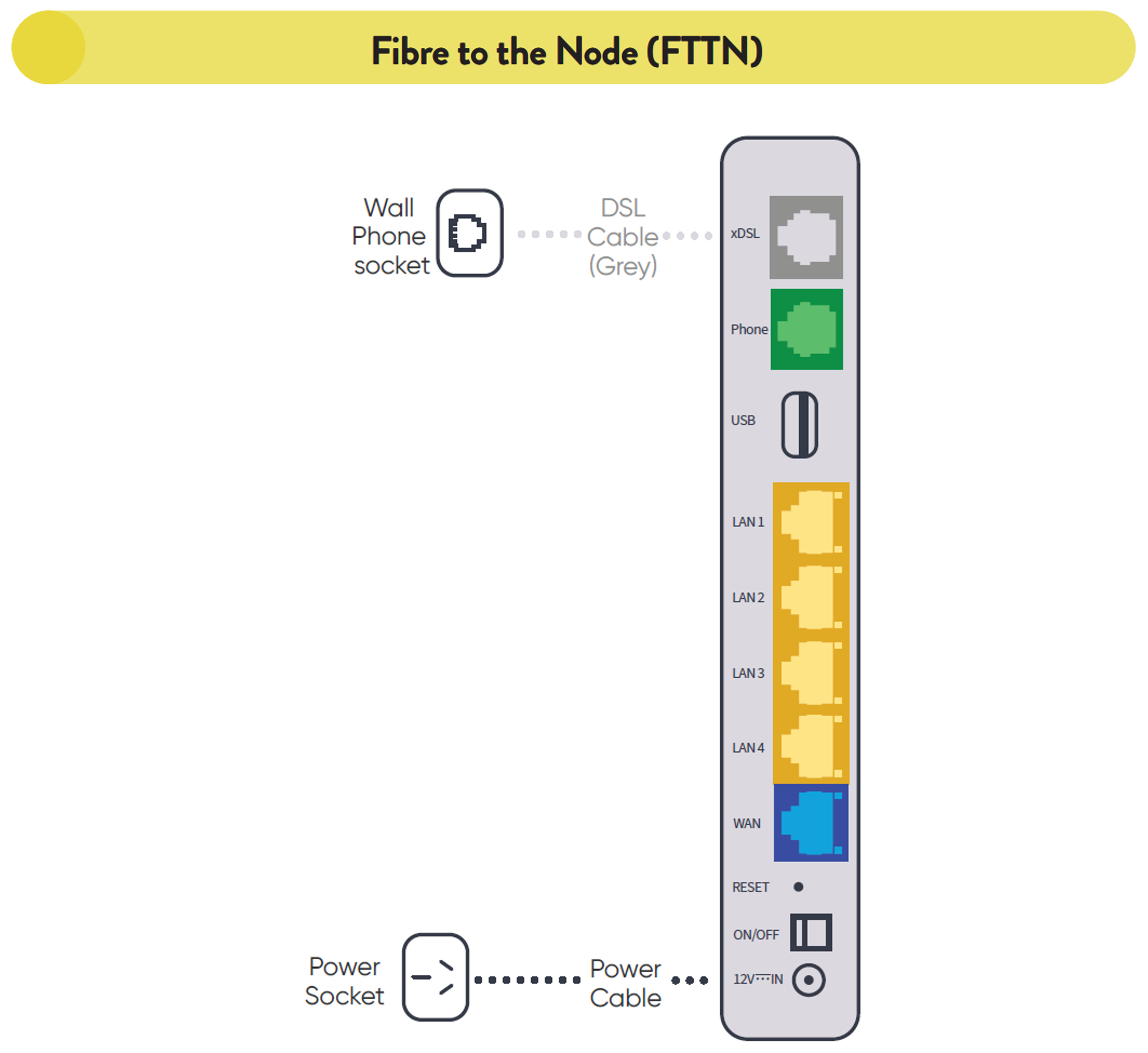
  1. Use the grey DSL cable provided with your modem to connect the DSL port on your modem to the main telephone socket on your wall. The DSL cable looks just like a normal phone cable.

    FTTN Modem Setup

  2. Turn on your modem and wait for the modem lights to turn on.


Step 3. Wait for the green lights

It can take up to 10 minutes for your modem to connect to the internet and set itself up. Make sure you give it time to do this configuration.

When the below lights are illuminated, you know you’re connected and your service is ready to use.

If after 10 minutes these lights aren’t illuminated, get in touch with us for support. 

Modem Lights


Step 4. Connect your device

Connect wirelessly (Wi-Fi):

  • Find the Wi-Fi Name and Wi-Fi Password printed on the sticker on the bottom of the modem.
  • To connect, choose the Wi-Fi Name on your device, then type in the Wi-Fi Password when prompted. The password is case sensitive.

WiFi Sticker


Cable

  • To connect a device, like a laptop or desktop computer, directly to a modem, plug one end of the supplied ethernet (yellow) cable into a yellow LAN port on the back of the modem and the other into your device.

Ethernet Setup

If you are still having issues connecting to the internet you can chat with our technical support team here or you can view our troubleshooting guides found here.


Download/View

TP LINK VX420 Modem Setup Guide

Step 1. nbn® hardware setup

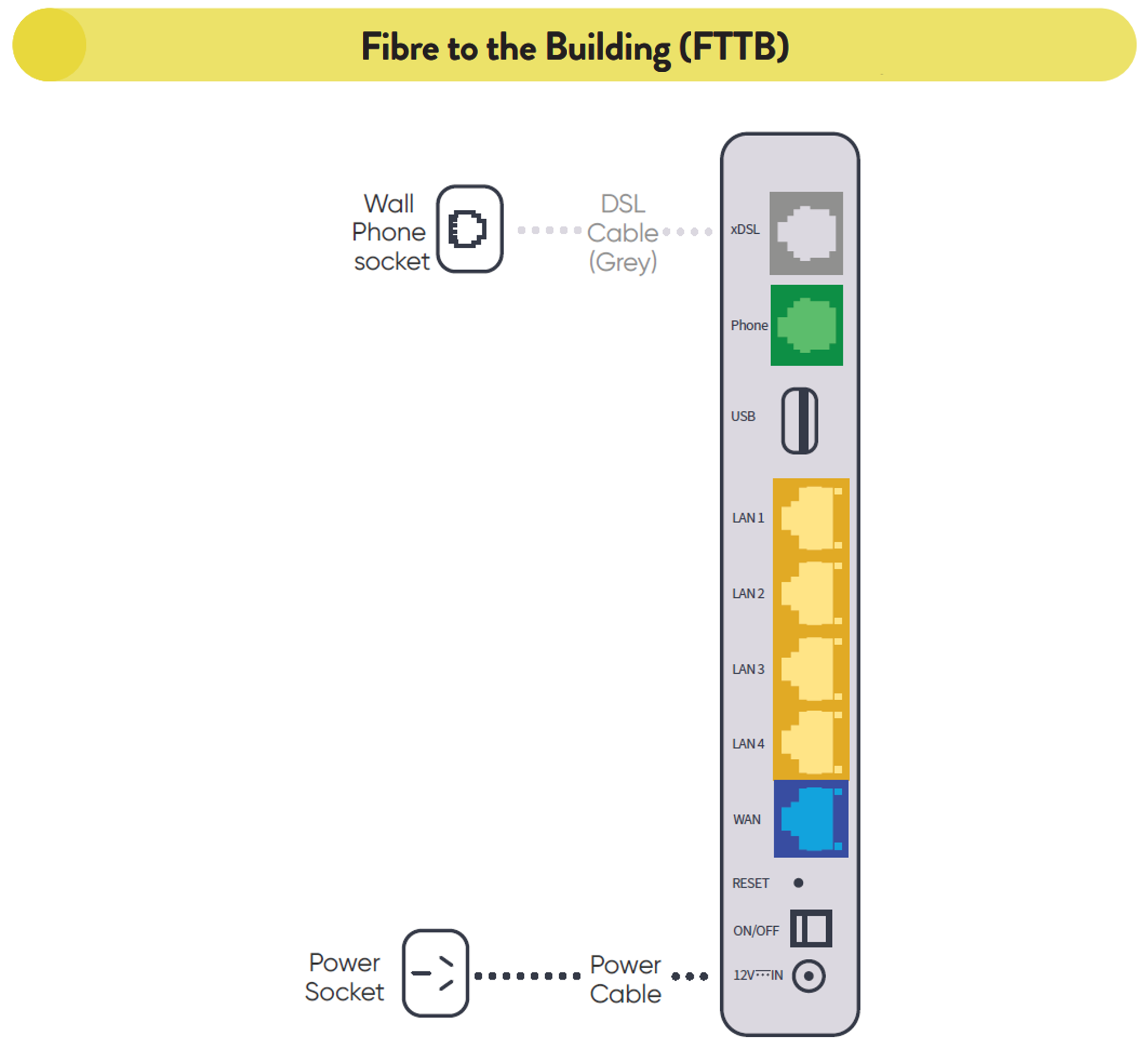
As your connection type is Fibre to the Node (FTTB) there won’t be any nbn hardware to set up in your premises. You will connect your modem directly to your main telephone socket.


Step 2. Connect the modem

Follow the instructions below to connect your new VX420 modem to the nbn connection box.

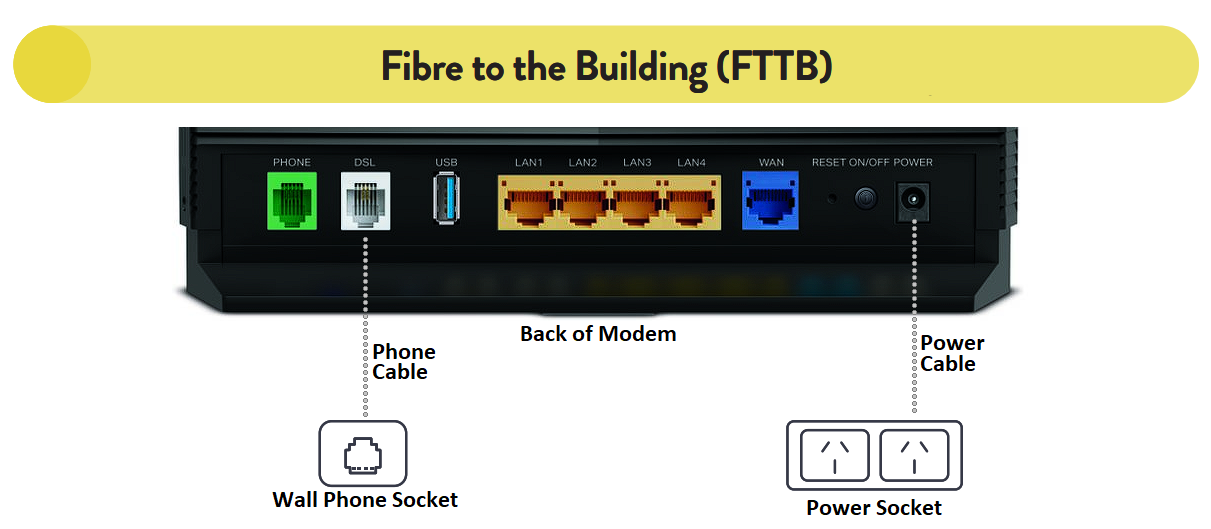
  1. Use the grey DSL cable provided with your modem to connect the DSL port on your modem to the main telephone socket on your wall. The DSL cable looks just like a normal phone cable.

FTTB Modem Setup

  1. Turn on your modem and wait for the modem lights to turn on.


Step 3. Wait for the green lights

It can take up to 10 minutes for your modem to connect to the internet and set itself up. Make sure you give it time to do this configuration.

When the below lights are illuminated, you know you’re connected and your service is ready to use.

If after 10 minutes these lights aren’t illuminated, get in touch with us for support. 

Modem Lights


Step 4. Connect your device

Connect wirelessly (Wi-Fi):

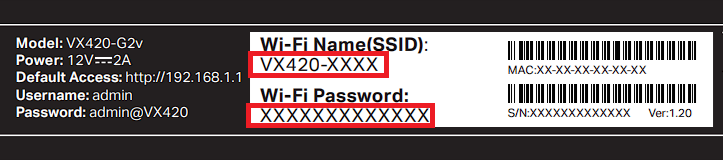
  • Find the Wi-Fi Name and Wi-Fi Password printed on the sticker on the bottom of the modem.
  • To connect, choose the Wi-Fi Name on your device, then type in the Wi-Fi Password when prompted. The password is case sensitive.

WiFi Sticker


Cable

  • To connect a device, like a laptop or desktop computer, directly to a modem, plug one end of the supplied ethernet (yellow) cable into a yellow LAN port on the back of the modem and the other into your device.

Ethernet Setup

If you are still having issues connecting to the internet you can chat with our technical support team here or you can view our troubleshooting guides found here.


Download/View

TP LINK VX420 Modem Setup Guide